
How to Schedule a Live Stream on YouTube and Start on Time
To schedule a live stream on YouTube with streaming software, open YouTube Studio, select Create, then Go live. In Live Control Room, choose Manage and Schedule stream. Add the event details and set its date, time, and visibility. Webcam and mobile streams have their own setup paths, covered below.
Scheduling gives you a watch link to share before the broadcast. It also gives viewers time to plan around your demonstration, interview, or Q&A. The remaining job is getting your video onto that same watch page when people arrive.
Check access before announcing a date
YouTube requires a verified channel, no live streaming restrictions within the previous 90 days, and a streamer aged at least 16. Its live streaming requirements explain eligibility. First-time activation can take up to 24 hours, so enable the feature before promising a start time.
Phone streaming additionally requires at least 50 subscribers. A webcam suits a straightforward conversation at your computer. An encoder, such as OBS, suits a production that needs several cameras or other equipment. Choose the setup you can rehearse reliably.
Schedule the correct type of broadcast
For streaming software, follow YouTube’s encoder scheduling instructions:
- In YouTube Studio, open Create, then Go live.
- Select Manage, then Schedule stream.
- Choose Create new or Reuse settings from an earlier broadcast.
- Enter the title and description, check audience and visibility settings, and set the scheduled date and time.
- Save the event and check its details before sharing the watch link.
Reusing settings saves setup work, but review everything copied from the previous event. An old title, privacy choice, or automatic start setting can turn a convenient shortcut into a confusing launch.
For a webcam, use Create, then Go live, and select Webcam. Add the title, description, and privacy setting, then use the option to schedule for later. YouTube’s webcam guide documents this separate route. Follow the current prompts rather than assuming the encoder controls will appear.
On a phone, open the YouTube app and select Create, then Live. Tap Edit, enter the details, and choose Schedule for later. To launch that scheduled event, return through Create, Live, and Calendar, select it, and tap Go live when ready. See YouTube’s mobile instructions for the full requirements.
Give people a reason to reserve the time
Use the event title to name the problem you will solve. “Live With Our Team” leaves the viewer guessing. For a hypothetical bicycle shop, “Fix a Squeaky Bike Brake: Live Troubleshooting” gives someone a reason to attend and a question to bring.
Put the date, time zone, and expected length in your announcement. For a worldwide audience, avoid an unexplained “7 p.m.” Check daylight saving changes before converting the time for another region. Ask a colleague to open the shared watch link and confirm the event name and start time.
YouTube says a scheduled stream may appear as upcoming in subscribers’ feeds. Where available, viewers can choose Notify me. Mention that option alongside the link, while keeping your own announcement clear enough to stand alone.
An announcement for that shop could read: “Bring your brake noise questions on Thursday at 7 p.m. Eastern. We will inspect a squeaky brake together, then answer questions for the final ten minutes. Use this link to find the session.” Replace those details with your own confirmed plan.
Keep one saved copy of the event link with the announcement text. Give it to anyone posting reminders or answering customer messages. If plans change, compare every announcement against that copy before posting an update. This small habit helps prevent a team member from promoting last week’s broadcast or sending viewers to the channel homepage.
Use a separate check for each launch stage
A scheduled event and a working video feed are different checks. With an encoder, send your video, wait for its preview in Live Control Room, and then select Go live when ready. Review auto-start and auto-stop settings before testing: these can let the encoder start or stop the broadcast. Reuse settings copies those selections too.
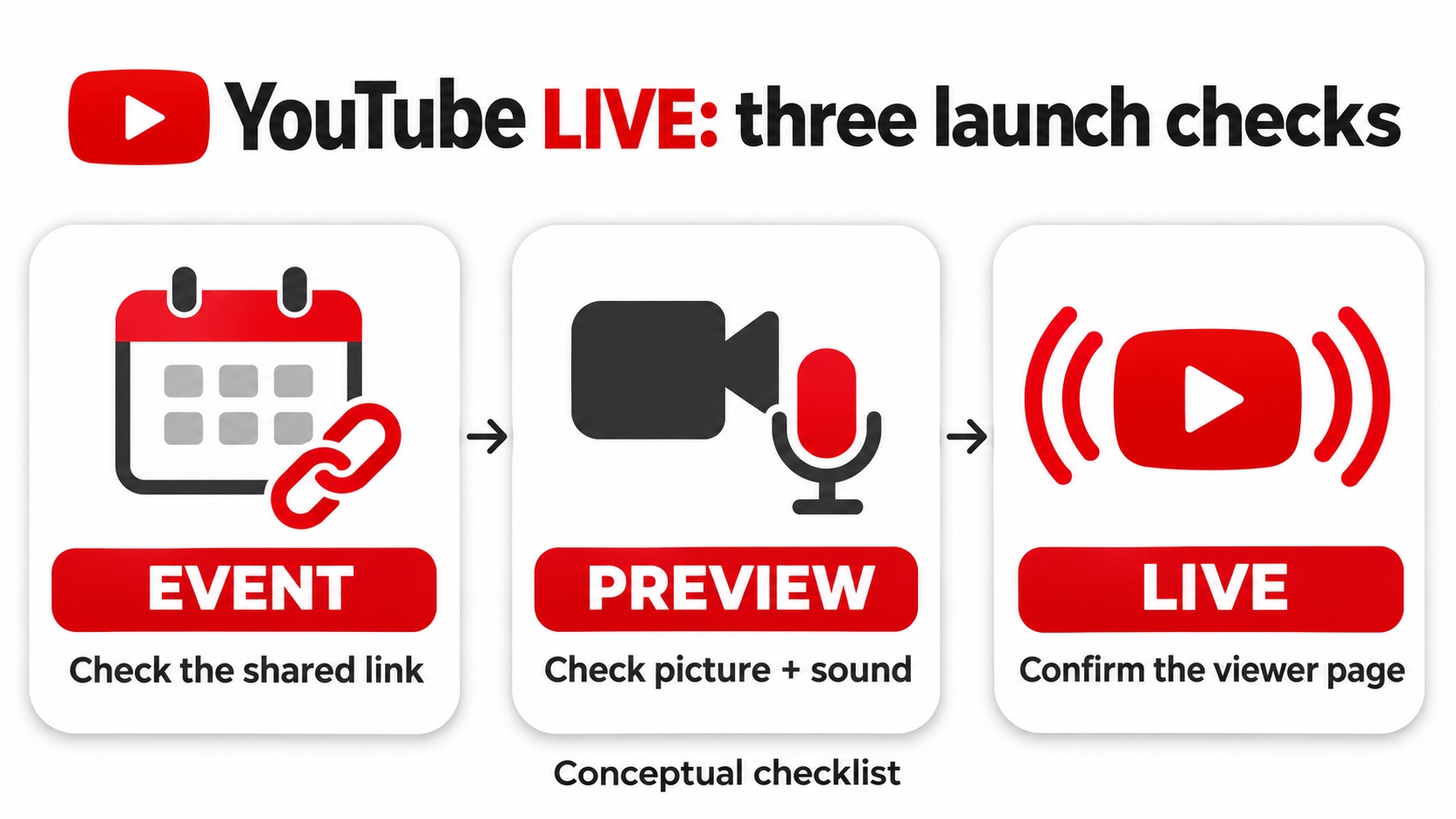
- The event exists: open the watch link you advertised and check the title, date, and visibility.
- The preview works: confirm that the selected event receives the intended camera and microphone.
- The audience can watch: have a colleague open the advertised link after launch and confirm both picture and sound.
Keep that colleague’s playback muted near your microphone, or use headphones, to avoid feeding the stream’s audio back into the broadcast. If the preview works but viewers still see an upcoming event, check whether you started the intended broadcast. Avoid creating another event before checking the original one; your announcement may still point there.
A simple plan for a thirty-minute demonstration
For the bicycle shop, assign one person to demonstrate the repair and another to monitor the viewer page and collect questions. Before the session, rehearse how the camera shows the brake closely enough for someone watching on a phone.
Write a short running order: explain the symptom, demonstrate the inspection, show the adjustment, and answer questions. Prepare a sentence that tells late arrivals what is happening. Keep a written instruction ready for any step that is difficult to see.
Set a decision time before the advertised start. If the camera or connection still fails then, decide who will update the audience and what the message will say. A specific update with a revised start time is more useful than leaving people to refresh an unchanged page.
Match promotion to the live event
If paid promotion is part of the plan, you can buy YouTube live stream views for the public broadcast. Our service concerns concurrent viewers during the live session, so select the exact event URL and check the package’s timing and duration. It does not schedule or start your broadcast. Chat participation and returning viewers are separate outcomes.
Prepare the content before arranging promotion. A clear demonstration gives visitors something to watch and a specific question to ask. Afterward, note where viewers needed clarification and improve that section before the next broadcast.