
How to Add Subtitles to a YouTube Video and Fix Errors
You can add subtitles to a YouTube video through YouTube Studio: open Subtitles, choose your video, select a language and add a caption track. Upload a prepared file, provide a transcript or type the captions yourself. If automatic captions already exist, review and carefully edit them instead of starting again.
This guide is for videos you manage. Watching someone else’s video does not give you access to its subtitle editor. For creators and businesses, the job is more than making words appear: viewers need accurate text that arrives at the right moment and preserves what you meant.
Choose the right starting point
A spoken tutorial, an interview and a quiet product demonstration need different amounts of work. Check what you already have before choosing a method. A reviewed transcript can save typing, while a finished caption file may already contain timings.
- Use an existing caption file when someone has prepared the wording and timing for this exact edit of the video. Confirm that it matches the final version.
- Use Auto-sync when you have a transcript in the same language as the speech. YouTube processes the text and aligns it with the audio.
- Type manually when the video is short or you prefer to work through it line by line. Include meaningful sounds as well as spoken words.
YouTube’s subtitle instructions describe these options. Auto-sync depends on supported speech recognition and is not recommended for poor audio or videos longer than an hour. Choose a method that suits the recording instead of assuming automation will solve every problem.
Add the track in YouTube Studio
On a computer, sign in to the channel that owns the video. Open Subtitles in Studio’s left menu and select the relevant video. Choose Add language if needed, then select Add in the Subtitles column for that language.
For a file, choose Upload file and specify whether it contains timing information. Select the file and save it. For Auto-sync, paste or upload the transcript and follow the save controls while YouTube processes the timings. With Type manually, work through the video and enter the caption text before publishing the track.
Use the actual recorded wording, not an earlier script. A presenter may shorten a sentence, change an example or skip a section during filming. Those small differences can turn a convenient script into an inaccurate caption track.
Correct automatic captions before sharing widely
YouTube can generate captions automatically, but they may not be ready immediately after upload. Background noise, overlapping speakers and unfamiliar pronunciations can cause mistakes. The platform’s automatic caption guidance explicitly recommends reviewing the result.
In Studio’s Subtitles area, open the video and find the language track. For automatic captions, choose Duplicate and edit. Make your corrections and publish the revised track. YouTube’s editing guide also explains how to change individual caption timings using the timestamp fields.
Read every line while listening. Checking only the first minute misses names introduced later, an important qualification near the end or a closing instruction that was transcribed incorrectly.
Review meaning before polishing punctuation
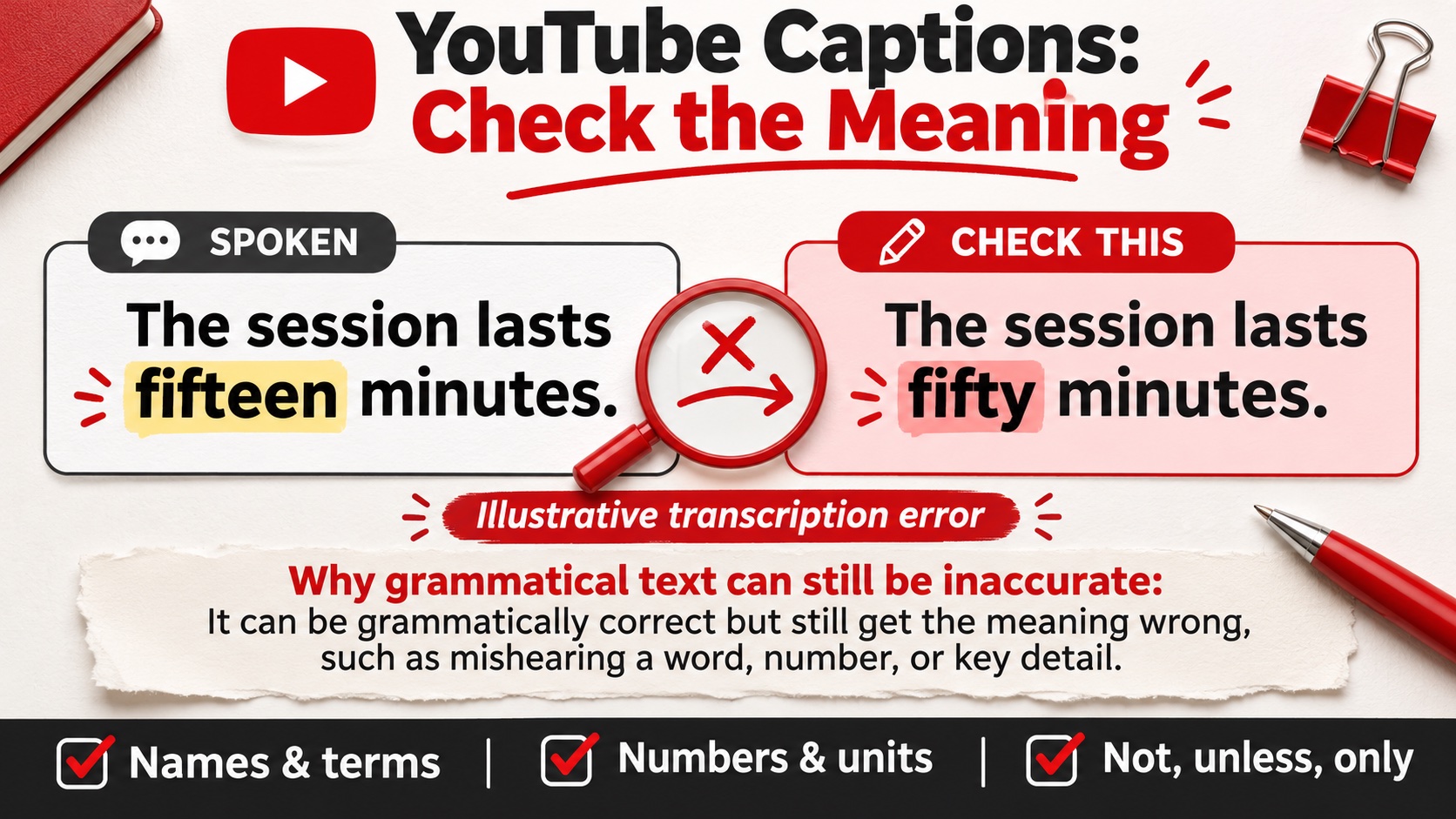
Start with errors that change the message. Imagine a presenter saying, “The session lasts fifteen minutes,” while the caption reads “fifty minutes.” Both sentences look grammatical. Only a comparison with the recording reveals the problem.
Use this small review order for a tutorial or business video:
- Names and terms: Check people, products, places and specialist vocabulary against the material shown in the video.
- Numbers and units: Listen carefully to dates, sizes, prices and measurements. Match the spoken information rather than guessing from context.
- Negatives and conditions: Make sure words such as “not,” “unless” and “only” have not disappeared. They can reverse an instruction.
- Speakers and sounds: Identify changes that matter to understanding. A relevant sound cue can explain an event the dialogue does not describe.
Then improve sentence breaks and punctuation. The aim is readable, faithful text. Avoid rewriting the speaker into a different tone or adding a claim they never made.
Watch once with sound and once without it
On the first pass, check that each caption appears alongside the matching speech. Pay attention where the presenter pauses, changes subject or points to something on screen. Adjust a line that arrives too early or disappears before you can read it.
On the second pass, mute the video and follow the explanation through its captions and pictures. If a person responds to an off-screen sound, does the text explain enough to make that reaction understandable? If two people speak, can you tell whose words you are reading?
Also check the finished video on a phone. Captions should not compete with essential labels placed in the same part of the picture. If you are planning the next recording, leave room for captions when arranging your on-screen examples.
Keep captions useful when promoting the video
Clear captions give people another way to understand your work, including viewers who cannot hear the audio. Finish that review before sending a larger audience to the video. A promotion is more useful when the explanation is ready to be watched and understood.
If you choose to purchase YouTube views, the service uses YouTube advertising to promote a public video. Prepare accurate captions alongside a title and thumbnail that match the content. Additional views do not guarantee recommendations or sales; the video still needs to answer the viewer’s question.
If you export a separate caption file, name it with the video version and language. Keep an untouched copy before making corrections. When a later edit removes a sentence or changes the introduction, revisit the timings rather than attaching the old file automatically. This simple habit prevents a correct transcript from becoming a confusing track on a newly shortened version later.
Make the final check on the watch page
Open the published video’s watch page, turn captions on and select the intended language. Confirm that your corrected track is available and inspect the sections you changed. Keep the reviewed text with the project files so the next edit starts from a reliable version.