

To add YouTube chapters, put a list of timestamps and descriptive titles in your video’s description. Start at 00:00, include at least three entries in order, and leave at least ten seconds for every chapter. Save the description in YouTube Studio.
The formatting takes minutes. Choosing useful starting points deserves more thought. Someone returning to your product tutorial may need only the lighting adjustment they missed yesterday. Clear chapters help that person find it without dragging through the entire video. They also give a first-time viewer a quick picture of what the lesson covers.
Add the chapter list in YouTube Studio
Open YouTube Studio, choose Content, and select your video. In Description, enter each timestamp and its title on a separate line, then select Save. YouTube’s chapter instructions explain the requirements above. Manually entered chapters override automatic chapters.
Build the list from the finished edit. A cut that removes an introduction or shortens a demonstration can shift every later starting point. Keep your chapter notes with the editable video project so you know which export they describe.
Work through a complete tutorial example
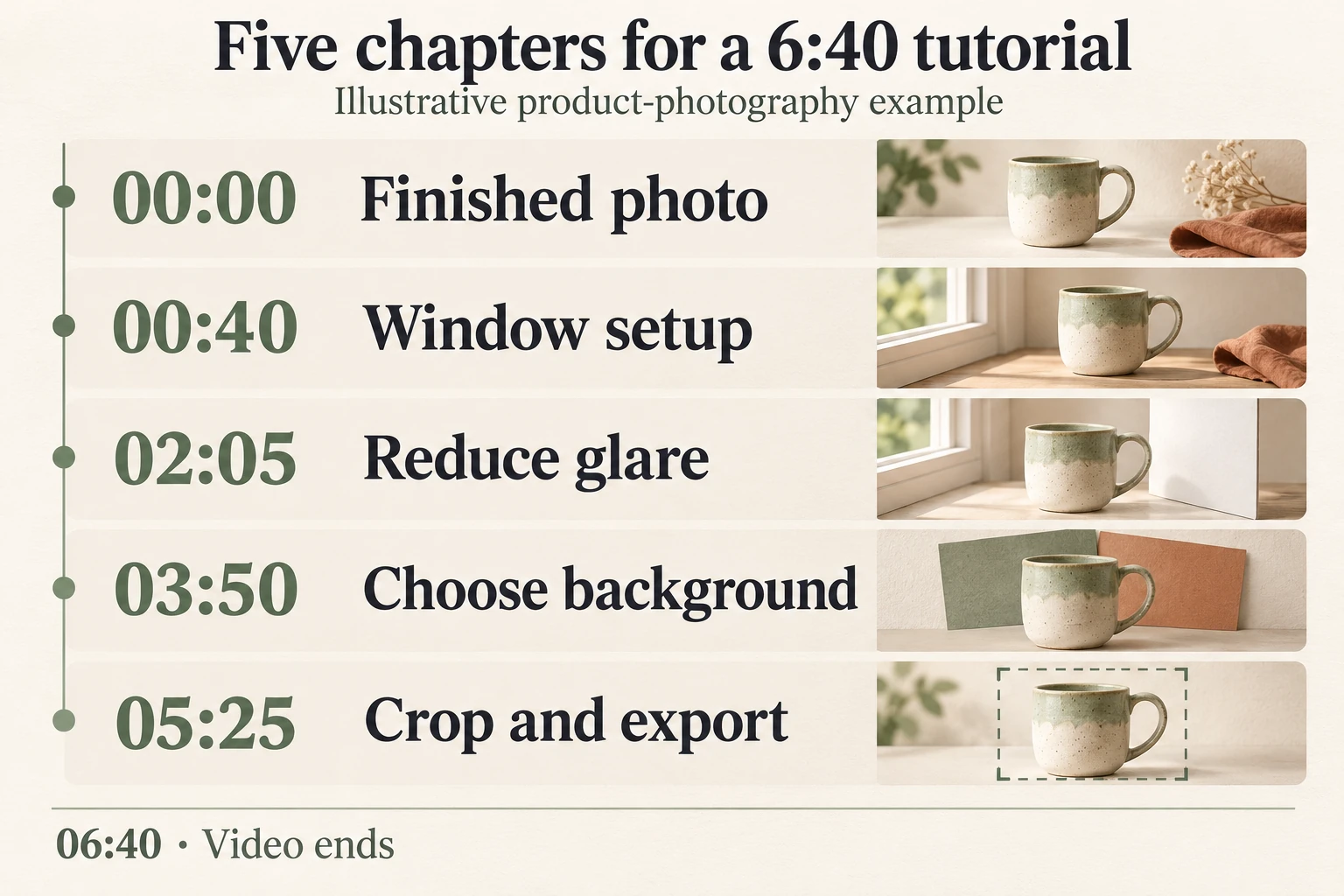
Imagine a six-minute, forty-second tutorial showing a small business owner how to photograph a handmade mug beside a window. The finished image appears first. Then the lesson demonstrates positioning, glare control, background selection, and a final crop. This hypothetical chapter list follows those viewer tasks:
00:00 Finished photo
00:40 Window setup
02:05 Reduce glare
03:50 Choose background
05:25 Crop and export
Each label tells the viewer what they can accomplish in that section. Someone happy with their background can go straight to the glare adjustment. Someone considering the whole tutorial can start with the finished photo and decide whether the result suits their shop.
The video ends at 06:40. The last chapter therefore lasts one minute and fifteen seconds. Do not add 06:40 as another chapter start: there is no video left after it. That endpoint belongs in your planning notes, not in the chapter list.
Start where the useful action begins
Suppose the presenter starts rotating the mug at 02:05, then says “watch the reflection” at 02:12. Starting the chapter at the spoken phrase would hide the movement that changes the glare. Use 02:05 so the viewer can see the original reflection and the adjustment together.
This is a useful distinction when editing demonstrations. A spoken topic change may happen after the relevant action has begun. Review both the picture and the audio before choosing the timestamp. For a software lesson, that could mean starting before the first menu opens. For a recipe, it could mean showing the mixture before adding the next ingredient.
Keep enough context for someone arriving halfway through. If the glare chapter opens with “move it over there,” the viewer needs to know which object moves and where. A brief view of the whole setup can make the instruction understandable. If you are still editing, add that context before exporting.
Use labels a viewer can recognize
“Reduce glare” describes a problem. “Part three” describes the video’s organization. The problem label is more useful to someone deciding where to click. Choose words your audience already uses, especially when your lesson introduces unfamiliar equipment or techniques.
Avoid turning every label into a variation of your main keyword. “Mug photography window setup” adds little when the video title already establishes the subject. Short, specific labels leave the differences between sections easy to spot.
Match the promise to the footage. If a section shows one background choice, “Choose background” fits better than “Every background explained.” Chapters should help people navigate what you actually filmed. A more dramatic label cannot supply a missing demonstration.
Test each starting point on its own
After saving, open the public video and inspect the chapter navigation. YouTube’s viewing guide explains how viewers move between chapters. Click each section as though you had not watched the preceding one.
For the mug example, check three things at every landing point: the expected subject is visible, the first instruction makes sense, and the label matches the task. Play several seconds beyond the timestamp. A still frame may look right while the next sentence depends on an explanation you skipped.
Check the description on your phone too. Read the labels together, then follow a link to a section you know well. If you later revise the video, repeat the check against the version viewers can actually watch.
Give the link to someone who has not seen the edit and ask them to find one answer: how do you reduce the reflection on the mug? Watch where they click and listen to what confuses them. If they choose the right chapter but miss the adjustment, revise the exact starting point. If they cannot identify the relevant chapter, revise its label. This simple review separates a naming problem from a timing problem without requiring a longer video.
If chapters do not appear
Recheck the timestamp format, sequence, and section lengths, including the final section. If those are correct, review access under Studio, Settings, Channel, Feature eligibility. YouTube’s advanced features guide explains the available verification paths. Turning on automatic chapters does not ensure they will appear on every eligible video.
Connect better navigation with your promotion plan
Google may use timestamps and labels from a YouTube description for Key Moments in video search results. That is a possible way for searchers to reach a relevant section, not a promise of placement or additional traffic. Write accurate labels because they serve the viewer first.
Finish these navigation checks before promoting the tutorial. If you plan to buy YouTube video views, choose the public video you have prepared. Boost Social Media describes this service as delivering views through YouTube ads. The chapter list remains part of your own preparation; assess how viewers respond separately.
Finally, decide where someone should go after the lesson. Our guide to YouTube end screens explains how to offer a relevant next video. Chapters guide viewers through this tutorial; the closing recommendation can continue the lesson.