
How to Add Links to a YouTube Description That Actually Work
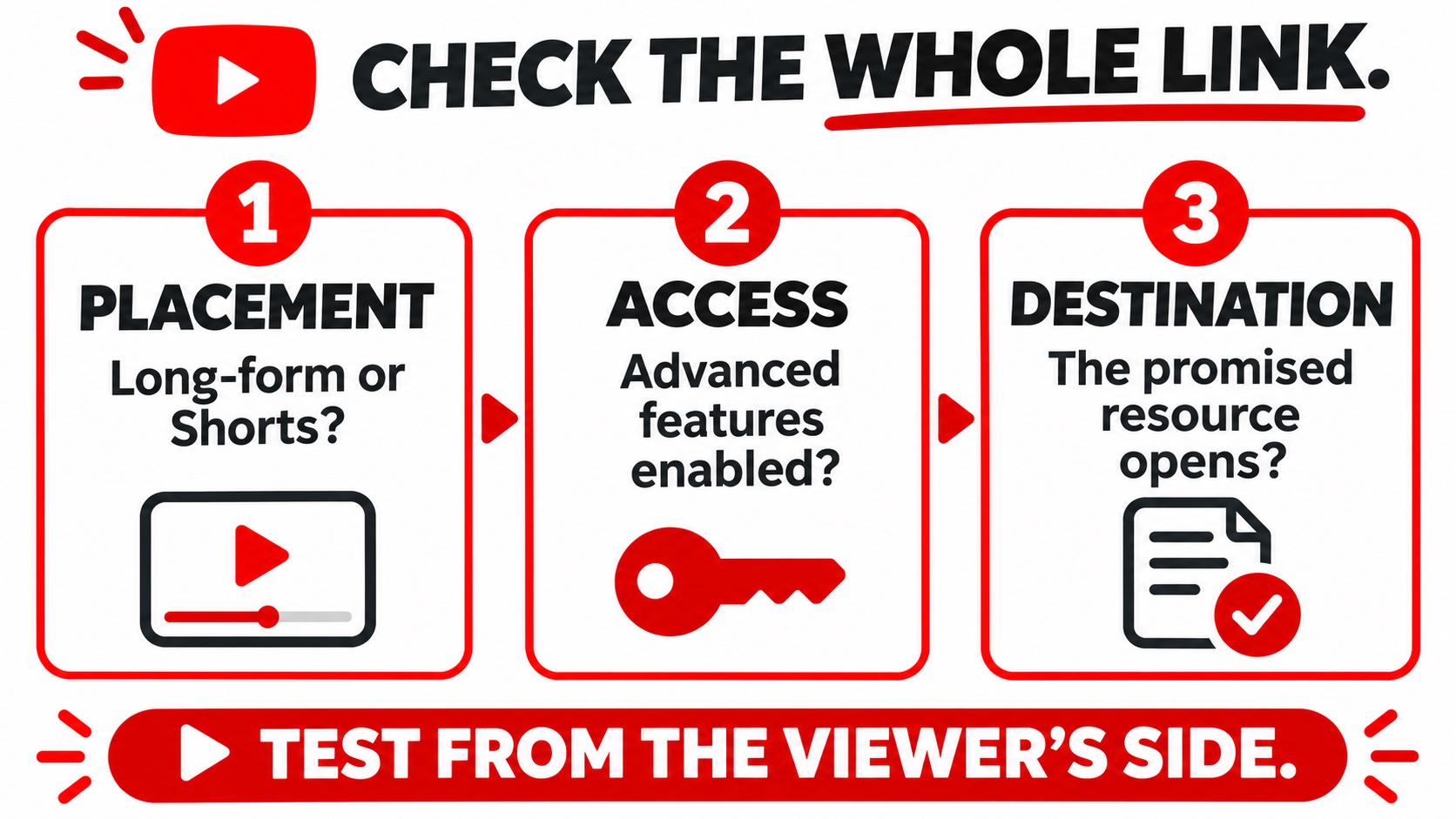
To add a link to a YouTube description, open the video in YouTube Studio, paste the full web address into the Description field, and save. Whether that address turns into a link viewers can tap depends on two things YouTube spells out in its help pages: the video has to be a long-form upload rather than a Short, and your channel needs access to advanced features.
The goal is simple. A viewer who hears “the recipe card is in the description” should be able to tap once and land on that recipe card. This guide covers where links work, what to check in your channel settings, and how to test the result the way a viewer sees it.
Paste the full address into the description
In YouTube Studio, open Content, choose the video, and stay on the Details page. Click into the Description box, paste the address where you want it, and select Save. You can do the same while uploading a new video, before you publish.
Paste the complete address, including https://, instead of typing a shortened version from memory. A missing character is the most common reason a link opens the wrong page or nothing at all. Copy it from your browser’s address bar after you have opened the page yourself.
Give each link its own line and a short label in front of it, such as “Printable recipe card:” followed by the address. A bare string of letters tells the viewer nothing, and a label makes it obvious which link they need when there are several.
Place the most important link near the top. Only the opening lines of a description show before a viewer expands it, so a link buried under a long block of credits is easy to miss.
Check that your channel can use clickable links
YouTube’s help page on sharing links with your audiences says that to add clickable external links, you must enable your channel’s access to advanced features. Without that access, the address can sit in the description as plain text that nobody can tap.
To see where your channel stands, open YouTube Studio, go to Settings, then Channel, and look at Feature eligibility. Studio shows which feature levels are active and, if advanced features are not, the ways of getting access that are open to your channel. Follow the options shown there rather than an old checklist, since the requirements can change.
Do this before a launch, not after. If a video promises a download and the link is not clickable, the first comments will be people asking where it went.
Know where links work and where they do not
Placement matters as much as access. According to the same help page, URLs in long-form video descriptions and comments can be clickable, while URLs placed in Shorts descriptions and Shorts comments are not. YouTube says it made Shorts links non-clickable to reduce spam and scam attempts.
So a Short should never carry the only copy of an important link. YouTube’s list of clickable items for Shorts includes the related video link, which can send viewers from a Short to another video on your channel. That long-form video can hold the full description and the working link.
Your channel page gives you another route. The help page describes channel profile links, which can showcase up to 14 links on your channel page. Put the destinations people ask for most, such as your shop or newsletter, there so viewers can find them from any video.
Test from the viewer’s side
A link that looks fine in your editor can still fail for viewers. After saving, open the public watch page in a browser where you are signed out, or in a private window. Expand the description and confirm the address shows as a link, not as plain text.
Then click it. Check that the page opens without an error, that it is the exact resource the video promised, and that it loads on a phone, since many viewers will tap from the mobile app. If the destination asks for a sign-in or a payment the video never mentioned, viewers will feel misled.
Repeat the test whenever you edit the description or move the destination. A renamed file or a new shop address can quietly break links in older videos that still get views every day.
Keep a short list of the links you maintain
Channels that publish often end up with dozens of descriptions pointing at the same few pages. Keep a simple sheet with the video title, the link, and the date you last tested it. When a page moves, you will know exactly which descriptions need updating.
Use the same label for the same destination across videos. A returning viewer learns that “Recipe card:” always leads to a printable card, which makes the link easier to trust.
Avoid stacking many links in one description. Someone looking for one resource should not have to read ten addresses to find it. If a video really needs several, group them under short headings such as “Tools used” and “Further reading.”
Stay inside YouTube’s link rules
Links are covered by YouTube’s policies. The help page notes that external links sending users to websites with content that violates YouTube’s External Links policy are not allowed on YouTube. Before adding a link, look at the destination with fresh eyes: would a viewer be surprised or put at risk by what they find there?
Be careful with link shorteners and redirect chains. They hide where a viewer will end up, and they add one more service that can break. When you control the destination, link to it directly.
Promote the video once the links are ready
Description links only help once people are watching. If you plan to buy YouTube views for a video, choose the public video, the quantity, and the total price before checkout. Boost’s package adds to that video’s public view counter; it does not click your description links, measure watch time, or guarantee recommendations.
Finish the description first, run the viewer test, and only then think about promotion. One working link, clearly labeled near the top, does more for viewers than ten that nobody can open.