
How to Add Captions on TikTok and Fix the Words That Matter
To add captions on TikTok, record or upload a video in the app, continue to the preview screen and choose Captions. TikTok transcribes the speech, and you can review each line before saving. That review matters: a correct-looking sentence can still contain the wrong name, number or instruction.
Captions help people follow your video when they cannot hear it or choose to watch quietly. For a creator or business, that means the explanation remains available beyond the soundtrack. The goal is to preserve what you mean, at a size and pace someone can comfortably read.
Know which caption layer you are changing
TikTok uses several kinds of text. The description beneath a post introduces the video; it is not a transcript. On-screen captions represent the speech. A headline you type into the video is another element again.
TikTok’s accessibility guide distinguishes auto-generated captions from creator captions. Auto-generated captions appear on eligible uploaded videos in the selected language. Creator captions are available during editing and let you review the transcript and change presentation details such as font style and color.
Text already rendered into an exported video belongs to the video image itself. Changing a TikTok caption setting will not rewrite those pixels. Identify the layer first; otherwise, you can correct one transcript while leaving an old mistake visibly underneath it.
Add and review creator captions before posting
- Tap the plus button in TikTok and record or upload your video.
- Continue to the preview, then open Captions from the editing tools. The first use may ask you to enable the feature.
- Wait for transcription, play the video and inspect each line.
- Correct the wording, choose a readable presentation and save before finishing the post.
For auto-generated captions, check the language separately on the posting screen: More options, then Select video language. Choose the language spoken in the clip. Do not assume a wrong transcript means the entire feature has failed before checking that basic setting.
These are the app workflows TikTok documents. Button placement can vary, so find the named caption control in your current editor. A tutorial showing a different toolbar layout may still describe the same task.
Proofread meaning before polishing the style
Imagine a camera instructor recording a short lesson about shutter speed. The spoken instruction says “one fiftieth,” but the transcript displays “one fifteenth.” Both look plausible. Only one matches the lesson.
Read numbers against the audio rather than glancing over them. Do the same for product names, measurements, technical terms and words that change an instruction. Missing “not” can reverse a sentence even when every other word is correct.
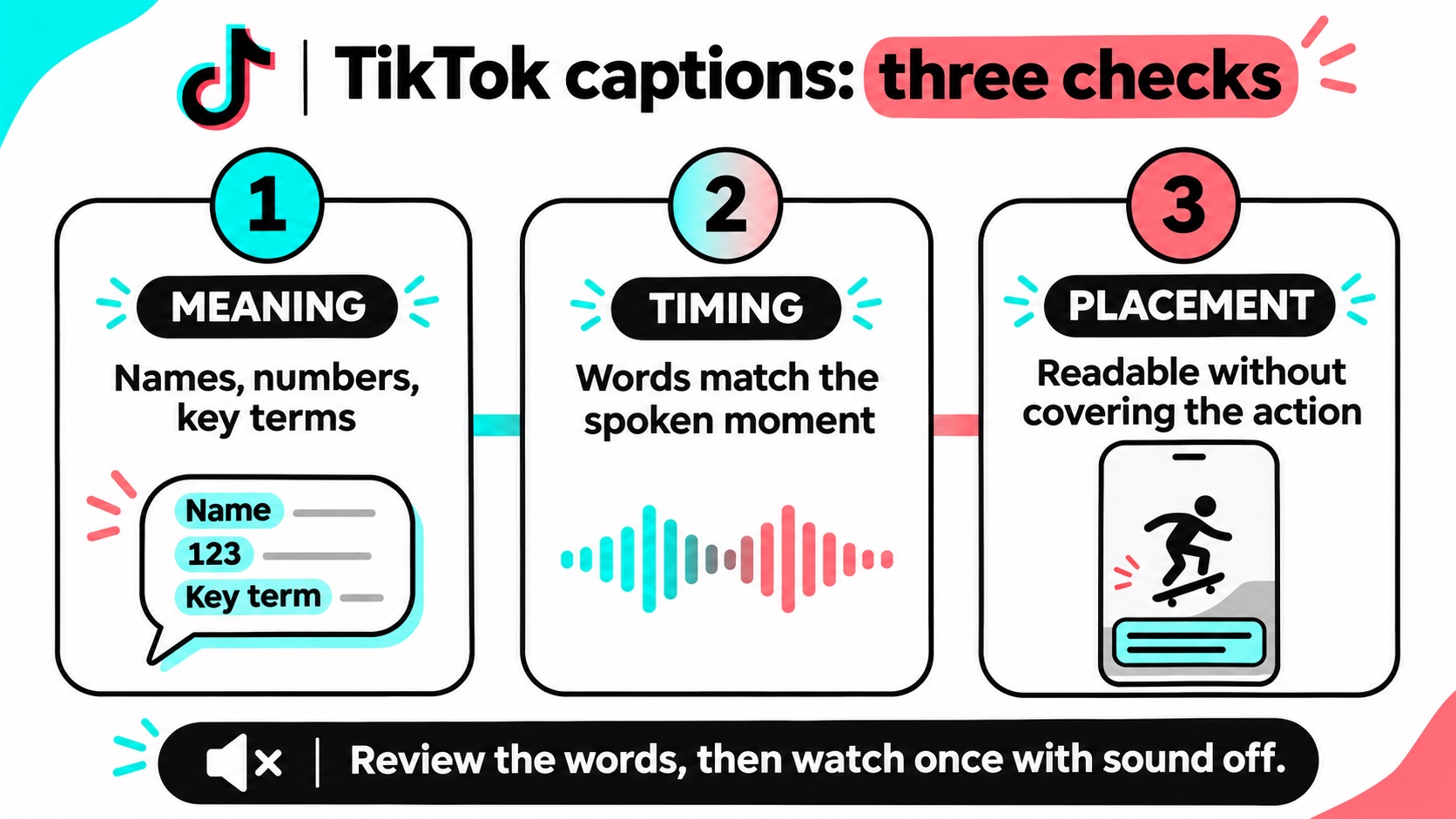
Use three passes instead of trying to judge everything at once:
- Meaning: Does the text match the spoken explanation? Check names and quantities carefully.
- Timing: Does each line appear with the relevant speech, and stay long enough to read?
- Placement: Can viewers read it without losing the action or important visual detail?
In the camera lesson, a caption covering the shutter-speed display defeats the demonstration. Move the text away from that display where your editor allows it, or revise the framing before export. The words and picture should help explain the same step.
Keep corrections faithful to the audio. If the speaker says something inaccurate, a silently rewritten caption creates two conflicting versions. Repair the spoken explanation in your edit rather than hoping the text will conceal the problem.
If every line needs extensive repair, listen to the recording itself. Background music, overlapping voices or a distant microphone may be obscuring the words. Improving that source recording can make the lesson easier to hear and caption next time.
Make the text readable on a phone
Preview at the size viewers will use. A subtitle that looks elegant on a large monitor can become tiny on a phone. Choose clear letter shapes and enough contrast against the changing background.
Check the entire clip, not just its opening frame. White text may read well over a dark jacket and disappear when the camera moves toward a window. A consistent background treatment can help, provided it does not hide what the viewer needs to see.
Break dense text into manageable phrases where your editing tools allow it. Avoid separating a number from its unit or leaving a single trailing word to flash briefly. The viewer should be able to read naturally while following the video.
Then mute the sound. Can you still understand the main explanation and its next step? Captions cannot describe every visual detail, but this check quickly exposes missing context, rushed lines and text that competes with the demonstration.
Correct auto-generated captions after posting
TikTok documents an editing path for auto-generated captions on your own posted video: tap the caption, choose Edit captions, make the correction and save. Use that route when the error belongs to the generated caption layer.
Do not immediately delete a post because of a transcript typo. First confirm which layer contains the mistake and whether the relevant editing control is available. Text embedded in your exported video requires a different correction in the original project.
If captions do not appear, remember that TikTok describes auto-generation for eligible videos. Check your current language and caption options, and inspect the actual post. A speech-free clip and a spoken tutorial do not offer the transcription system the same material.
Prepare a clear video before promoting it
Once the captions are accurate, review the video’s opening and purpose. Someone arriving without context should understand what the clip offers. That preparation makes any additional attention more useful because the explanation is ready to follow.
If you are researching how to buy TikTok views, Boost Social Media provides a service for selected public videos. Choose the finished, caption-checked version. A views package concerns the view count; it does not correct unclear teaching or prove that viewers understood the message.
Keep your editable video and corrected wording together. When you adapt the clip later, those files let you change the format without reintroducing the transcription mistakes you already fixed.