How To Undo A Repost On TikTok?
TikTok, where trends spread like wildfire and creativity knows no bounds. You come across a fantastic video, a true gem that deserves to be shared with the world. Without hesitation, you hit that “Repost” button, spreading the joy to your own profile.
But what if you change your mind? What if regrets creep in? Fear not, fellow TikTokers. We are here to guide you through the maze of undoing a repost on TikTok! This article delves into the art of reposting on TikTok. But that’s not all—we’ll also unveil the secrets of “How to Undo a Repost on TikTok?” granting you the power to rectify your decisions and save face.
And to top it off, we’ll shed light on seeing reposts on TikTok, helping you uncover hidden trails of shared content. We’ll provide concise, easy-to-follow instructions sprinkled with humor and wit. By the end, you’ll be a TikTok master, confidently navigating the app’s ever-changing tides.
So, buckle up, flex those fingers, and embark on this captivating journey through the TikTok repost riddle. Get ready for laughs, knowledge, and newfound control over your TikTok adventures.
How to Repost on TikTok?
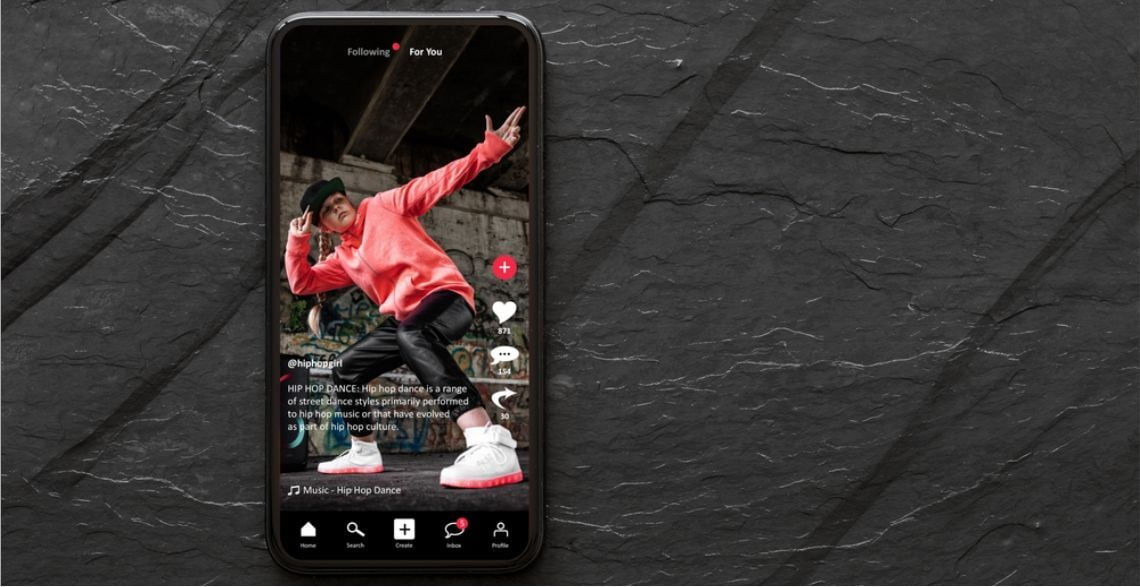
Have you noticed the snazzy new “Repost” button on TikTok? It’s like Twitter’s “Retweet” feature, but with a twist! You can share awesome content with your followers while crediting the original creator. However, unlike Twitter, the reposted video won’t appear on your profile. Instead, it gets sent out to your friends’ For You feeds. Sneaky, right?
Before this nifty feature, reposting videos on TikTok was a hassle. You had to download the video and then upload it again on TikTok. Talk about a copyright minefield! But fret not, my friends, because the repost button has made things much easier. Allow me to guide you through the simple steps of reposting a video on TikTok:
Step 1: Launch the TikTok app on your phone and find that amazing video you want to share with your followers using the repost button.
Step 2: Once you’ve tracked down the gem of a video, tap on the Share button lurking in the bottom right-hand corner. It’s just itching to be clicked!
Step 3: Behold! You’re now in the magical realm of the Send to popup. Look closely, and you’ll spot the shiny new “Repost” option hanging out next to your contacts. Give it a gentle tap, and watch the magic unfold.
Step 4: There it is! The Reposted information appears before your very eyes. To spice things up, you can even add your caption message here.
There you have it, folks! Reposting videos on TikTok has always been more complex. Share those awesome videos with your friends, get out there, and spread the joy. You can also share your own video.
How to Undo a Repost on TikTok?
Imagine this: you’re scrolling through TikTok, find something cool, and without much thought, you hit that repost button. Life is full of surprises; sometimes, we change our minds faster than a chameleon changes colors. “How to Undo a Repost on TikTok?” Well, worry not because undoing that impulsive repost is as effortless as the original act!
Listen up and follow these simple steps to make it happen:
- Locate the video you so hastily reposted.
- Spot that sneaky share menu on the right side of the video—it’s the arrow-shaped button, hard to miss!
- Now, summon your inner wizard and click the ‘Remove repost’ button.
- Wait for it… pop-up alert! Confirm your decision to undo the report, and that’s it!
See? Piece of cake! You can easily change your mind and bid farewell to that repost you regret. But keep in mind time is of the essence. The longer you wait, the greater the chance your TikTok masterpiece has graced someone else’s screen. So, act swiftly, my friend!”
How To See Reposts On TikTok?
Are you itching to feast your eyes on those hilarious reposted videos on TikTok, but somehow they’re playing hard to get? We feel you! Here’s the deal: TikTok’s got a sneaky little trick. When you repost a video, it doesn’t appear on your profile.
Nope, it takes a detour and ends up smack dab in your friends’ For You feeds, accompanied by your witty comment. TikTok keeps the reposted videos hidden from your prying eyes. The only way to catch a glimpse of those gems is by checking out your friend’s FYP. It’s like a secret treasure trove of reposted TikToks.
More Things To Know About The TikTok Repost
Following are the things to keep in mind before reposting any video on Tiktok:
- Suppose you’re scrolling through your social media feed, looking for entertaining videos to brighten your day. You stumble upon a hilarious clip and share it with your followers. But here’s the catch: the likes only go to the original videos. So if you repost it, you won’t get those sweet, sweet thumbs-up for yourself.
- Let’s remember the comments. Even if people leave their witty remarks on your reposted video, they’ll only be visible on the original one. They’re trapped in a digital labyrinth, unable to escape and find their way to your version.
- Now, let’s talk about the followers. Like the previous scenarios, followers will only be added to the original creator’s count if you repost a video. Sorry, but you won’t be gaining any new fans from your act of sharing.
So, remember, if you want fame, glory, and adoration, create your own original content. Otherwise, you’ll be left in the shadows while the true creators bask in the limelight.
FAQs
What happens if I delete a TikTok video and repost it?
If you delete your repost, your followers will only see the video if the algorithm features it in their feeds. A video can be reposted and unposted as often as you like on TikTok.
Can you see old reposts on TikTok?
You can see old reposts on TikTok. It is super easy. Simply open your profile in the TikTok app and click double arrows in the center-right part of the screen to watch your old TikTok reposts.
Does TikTok recognize reposts?
TikTok’s “repost” function is a simple and fast way to broadcast video to your followers and friends. When you publish something on your account, you’re not making any claims to ownership; you’re just sharing that stuff with your followers, just like on any other social media site.
Wrapping Up!
In this article, we’ve covered everything from the nitty-gritty of reposting to the heart-sinking moment when you realize you’ve made a reposting blunder. But don’t fret; we’ve also provided you with the secret recipe to “How to Undo a Repost on TikTok?” and preserve your online reputation. Reposting requires finesse and discernment. Before you hit that “share” button, ask yourself if the content is truly worthy. Quality reigns supreme over quantity. Mistakes happen, and reposts can slip through. Thankfully, we’ve cracked the code to undo unintentional shares. With a few taps and swipes, your repost can vanish (well, mostly). Just hope no one took a screenshot. Use your newfound power responsibly and keep those viral videos flowing.