
TikTok Playlists: How to Create and Organize a Useful Series
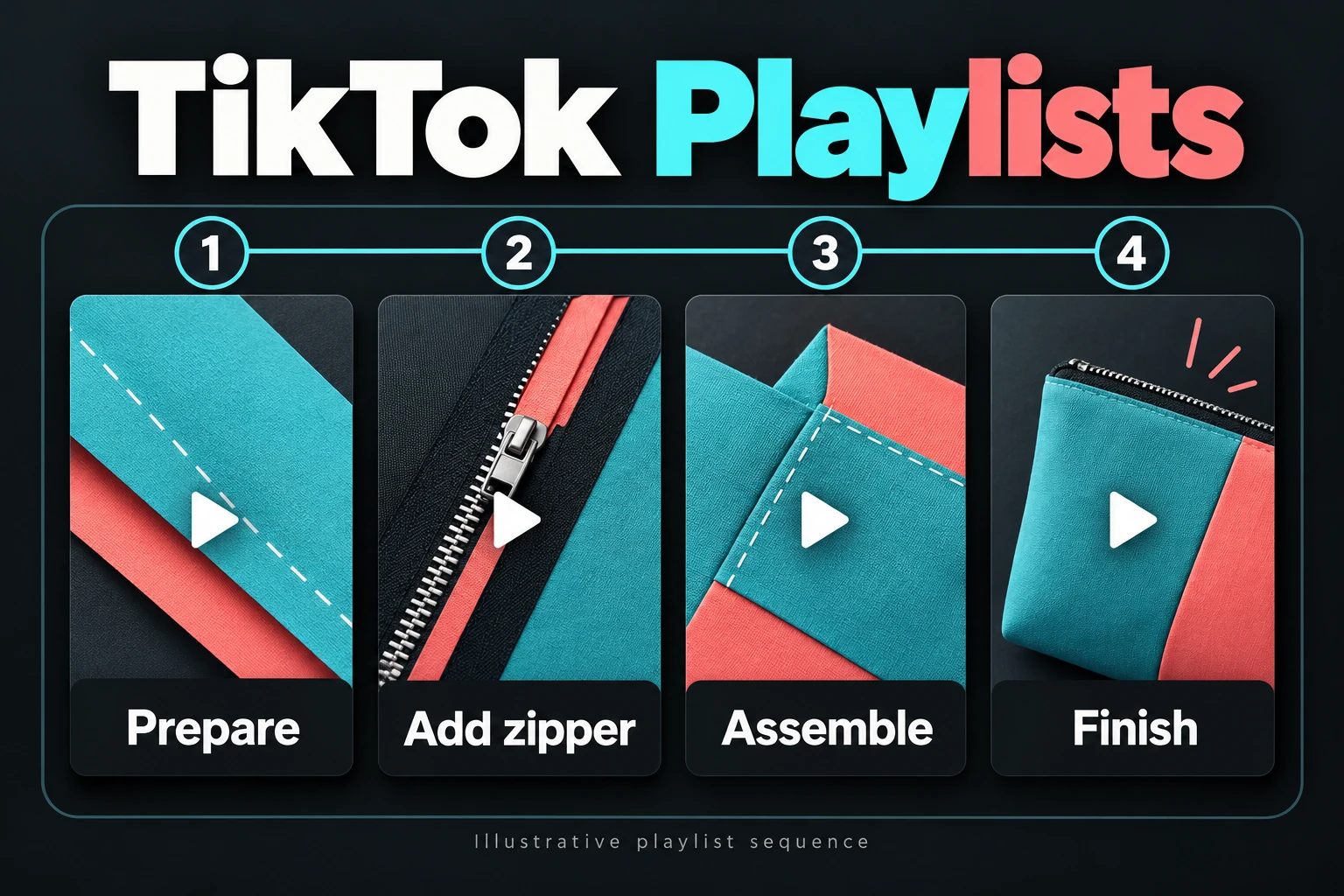
TikTok playlists group related videos so viewers can find the next part of a lesson without searching through your profile. Eligible creators can make one in TikTok Studio, add their videos, and arrange them into a useful viewing order.
The order deserves as much thought as the setup. Someone who discovers your finished project may want the preparation lesson you posted weeks earlier. A playlist can put those clips together and make that starting point easier to find.
For a business, this gives older demonstrations a useful place beside newer posts. A sewing shop’s zipper tutorial, for example, can belong to a complete beginner project instead of sitting among unrelated product announcements.
Check whether your account has access
TikTok’s Creator Academy currently lists playlists as available to creators with over 10,000 followers. Check the tools in your own account before planning a launch around the feature.
If Playlist is missing, you can still prepare a coherent series. Use consistent project names and part labels in future videos, and explain which lesson comes next. Those choices help people recognize related posts while you wait for access.
Each video can belong to one playlist. Choose its home according to the question it answers. A zipper demonstration could fit several sewing projects, but adding it to every collection is not an available shortcut.
Create the playlist in TikTok Studio
- Open TikTok Studio and select Playlist under Tools.
- Choose a name, then select the videos you want to include.
- Check the collection after creating it and arrange the videos in the order viewers should watch.
Playlist names can contain up to 25 characters. Use that space to identify a subject or result. “First Zip Pouch” tells a beginner what the collection covers; “My Best Videos” leaves them guessing.
TikTok’s default sequence follows when videos were added to the playlist, oldest first. It does not necessarily match their original posting dates. To change the order, open the playlist menu, choose Edit playlist, then press and hold a video to drag it into place.
When publishing another relevant video, you can use More options and Add to playlist before posting. Revisit the sequence afterward, especially if the new clip explains something viewers need before an existing lesson.
Build the viewing order around one project
Imagine a sewing creator organizing four existing clips into a “First Zip Pouch” playlist. This hypothetical example gives every video a specific job:
- Prepare: introduce the project and show the pieces used in the demonstration. Give viewers enough context to recognize what they will make.
- Add zipper: explain the zipper stage. Refer back to the prepared pieces so the connection between lessons is clear.
- Assemble: continue the project using the work already demonstrated. Identify the stage at the opening so someone arriving here can orient themselves.
- Finish: show the completed pouch and review the finishing details. Let viewers compare the outcome with the project introduced at the start.
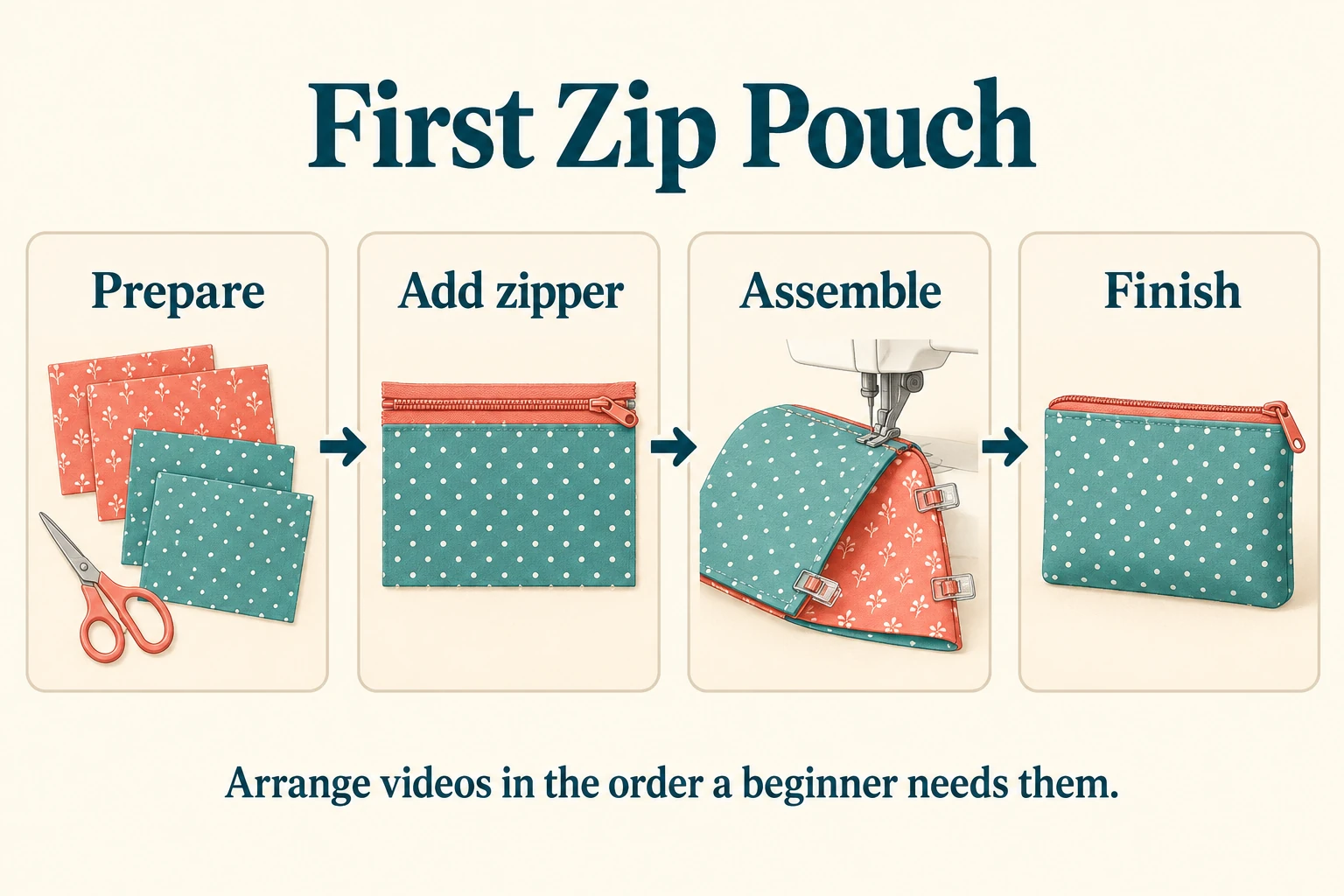
The finished pouch video might have been published first as a project announcement. Move it to the end of this instructional sequence, where viewers have already seen the preparation and assembly. They can still discover that post independently.
A separate video of packing customer orders may be appealing, but it does not help someone complete this project. Someone opening “First Zip Pouch” should find the preparation, zipper, assembly, and finishing lessons together, without unrelated footage interrupting them.
Independent tips need a different approach. If each video answers a separate question, start with a useful introduction or a common problem. A sequential tutorial needs its prerequisites first. Choose the order that suits the material instead of automatically putting the highest-viewed post at the top.
Check the experience from a middle video
A viewer may discover the assembly clip before seeing your profile. TikTok displays playlist links on videos that belong to a playlist, as well as making collections accessible from the creator’s profile. Viewers can open the collection and swipe through its videos.
Test that route yourself. Open a middle clip, follow its playlist link, and check whether the collection gives enough context. Use these questions during the review:
- Does the playlist name describe the project shown in this video?
- Can someone identify the starting lesson without guessing?
- Does each opening explain the stage it covers?
- Does the next clip continue the task the current one started?
For future filming, give each episode a brief orientation. “This is the assembly stage of our First Zip Pouch project” is useful even to someone who arrives midway through the series. Keep the explanation short enough that returning viewers can get straight to the demonstration.
When a lesson refers to an earlier step, name it plainly. “Watch the preparation video for the pieces used here” gives viewers something specific to look for. That reference also works when someone reaches the clip outside the playlist, where your intended sequence may be less obvious.
Keep the collection useful after launch
Review the playlist when you add or replace a lesson. Check for missing prerequisites, repeated explanations, and clips that no longer match the project. An additional video should answer a question the existing sequence leaves open.
You can remove a video from a playlist without abandoning the whole collection. TikTok also explains that deleting a playlist leaves its individual posts intact. Choose the change that solves the organizational problem.
If you plan to buy TikTok video views, Boost Social Media offers views for one selected public video. Choose the introduction if you want the project’s first lesson to receive those views. The views apply to that video’s counter; the playlist gives interested viewers a route to the related lessons. Assess follow-through separately rather than treating more views as evidence that people completed the series.
Before sharing the collection, ask someone unfamiliar with the project to find its starting point. Watch where they hesitate. A confusing name, an unexplained opening, or a misplaced clip gives you a specific edit to make. Start with that correction, then check the saved sequence again.