
How to Make a Spotify Canvas: A Six-Second Loop Guide
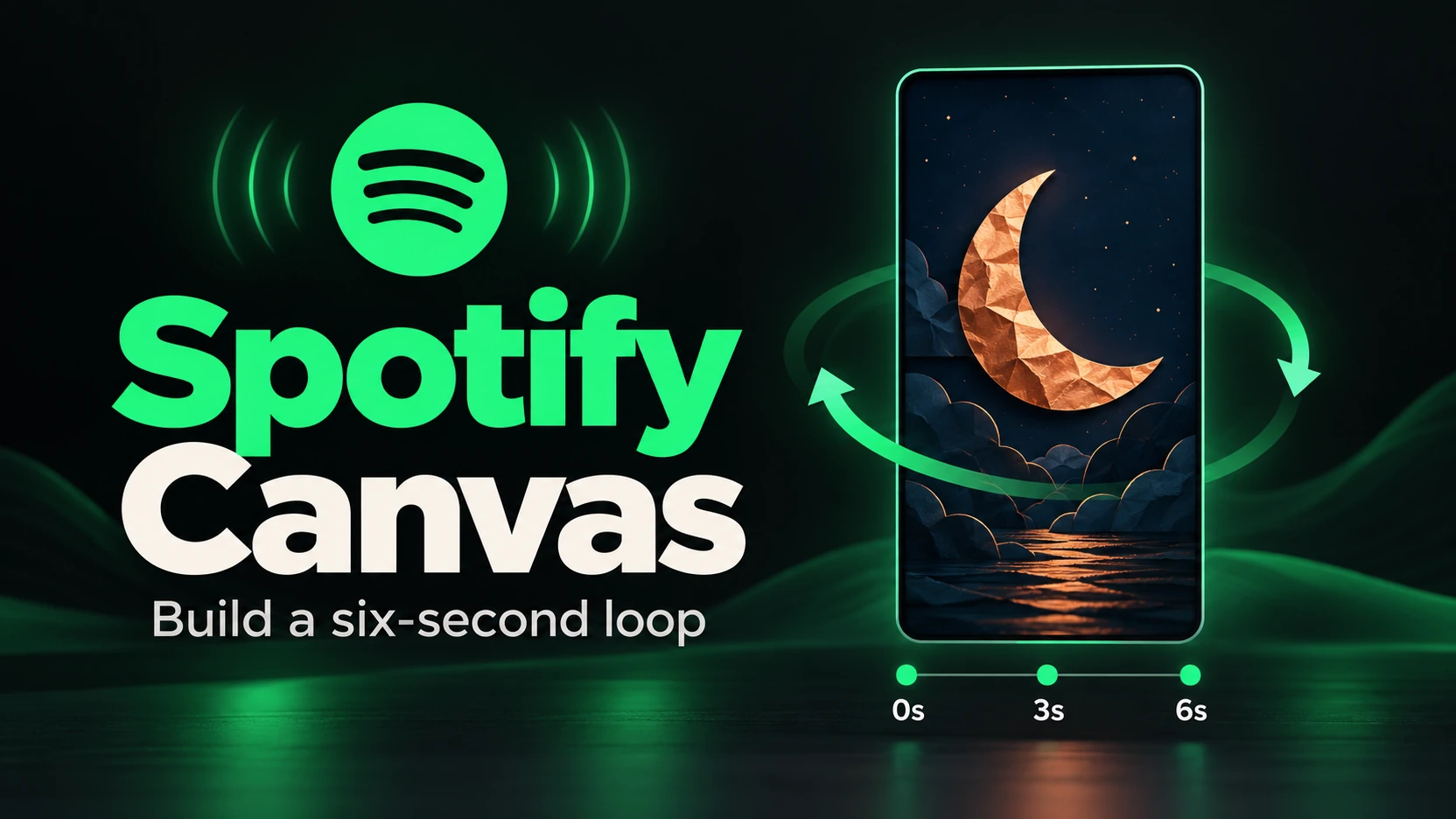
To make a Spotify Canvas, turn one visual idea into a short vertical loop, export a file that meets Spotify’s requirements, and add it to your track in Spotify for Artists. A phone, a steady support, and an editor with a reverse control are enough for the example below.
Canvas gives a song a visual identity while someone listens. It appears in the mobile app’s Now Playing view, and Spotify explains that it can accompany a track shared to Instagram Stories. That makes a recognizable image useful across the listening and sharing experience. Start with a detail that belongs to your release.
Set the file requirements before editing
Spotify’s Canvas guidelines specify a vertical 9:16 ratio, a height between 720 and 1080 pixels, and an MP4 or JPG file. A video must run from three to eight seconds. Check the height carefully: a familiar 1080 × 1920 social video preset is 1920 pixels tall.
For this walkthrough, a 540 × 960 export fits the stated ratio and height range. Treat that as an example configuration. If your editor offers custom dimensions, enter the width and height separately, then check the exported file’s properties. The project preview alone does not confirm what the export contains.
Use footage without lip movements that would need to match the song. Leave room around the subject and avoid flashing effects. Your track’s title already appears in the player, so the visual can concentrate on the scene.
Film one movement that suits the song
Imagine an independent musician preparing a quiet electronic single with copper and dark blue artwork. This hypothetical example uses a copper paper crescent suspended in front of navy fabric. The crescent turns gently, catching light along its edge.
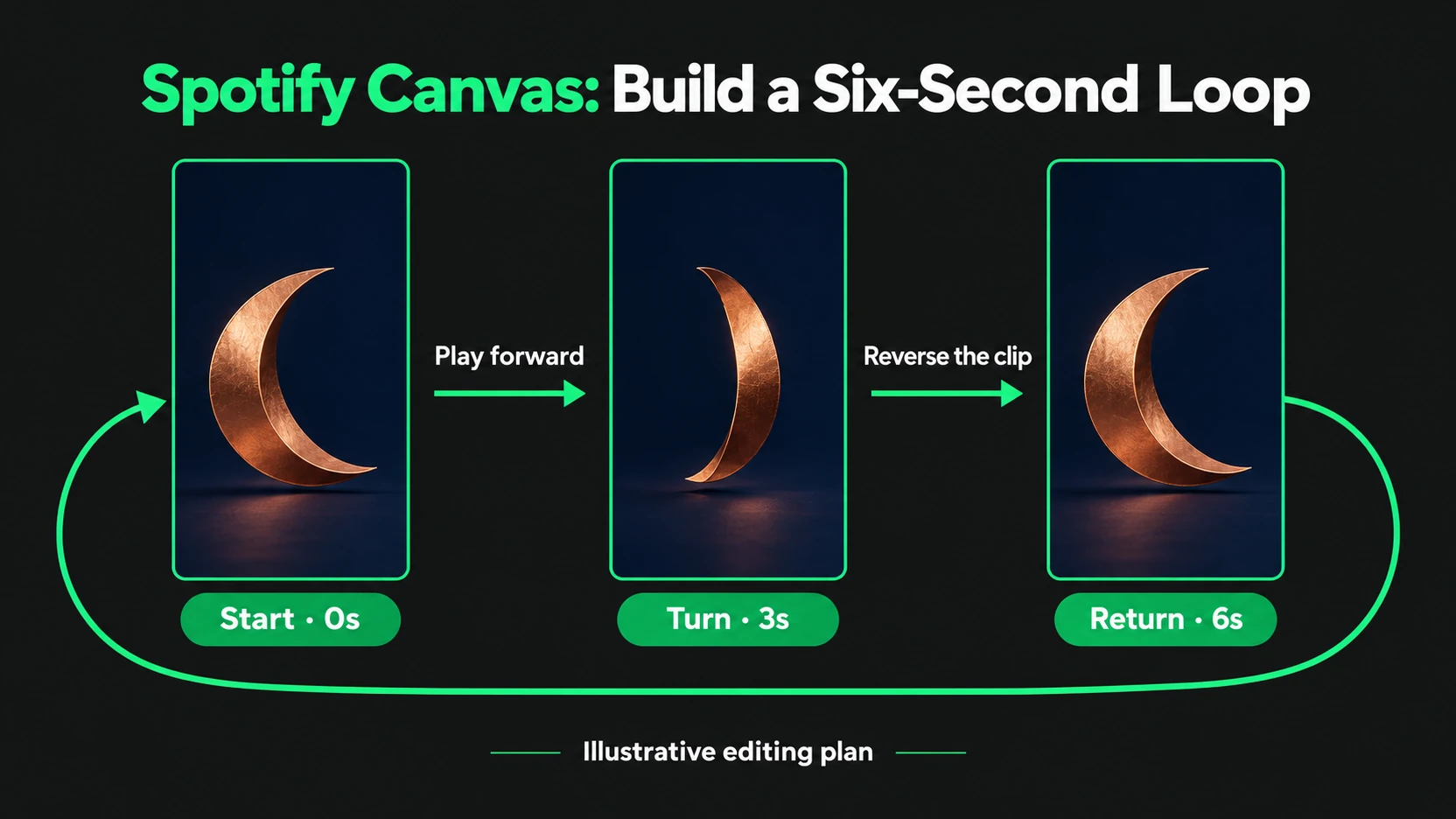
Before filming, write one sentence: “The crescent slowly turns and returns.” That sentence defines the shot and gives you a way to reject extras. A second moving object, changing lights, or a title animation would each introduce another thing to check. Record a still frame too. If the moving version distracts from the song, you have a simpler visual option ready to use.
Place the phone upright on a tripod or stable support. Frame the crescent with some background visible on every side. Keep the lamp in one position and remove bright objects that pull attention away from the paper. Record a little extra footage before and after the movement you want.
Choose a section where the crescent turns slowly in one direction. Avoid the moment when a hand enters the frame to move it. A small, controlled turn is easier to judge than a spin that becomes a blur.
Watch the shot at the size of a phone screen. If the crescent disappears into the fabric, change the lighting or background before editing. If the camera shakes, record another take with firmer support. Fixing the setup now saves you from trying to hide a distracting movement later.
The same approach can work with another detail from your artwork: a folded letter, a painted shape, or a piece of fabric. Pick an object you can frame and move deliberately. You do not need a complete music video to communicate the release’s mood.
Build a six-second rebound loop
In your editor, trim the chosen movement to three seconds. Duplicate that clip, place the copy immediately after the original, and reverse the copy. The first half moves forward; the second retraces it. Together, the clips make a six-second sequence.
Play the sequence repeatedly. At the middle, the movement should turn back without an accidental freeze. At the end, the image should return to its starting position. Look for repeated endpoint frames that create a visible pause, and trim those if needed. Recheck the total duration after adjustments.
Keep the crop and color settings identical on both clips. If you brighten only the reversed copy, the join can flash even when the subject lines up. Apply shared adjustments before duplicating, or copy them consistently to both halves.
Export a test file and play that file on your phone. An editor’s timeline can look different from the finished export. Check the turnaround, the final join, and whether the paper’s edge stays sharp enough to recognize. Keep the editable project alongside the export so you can revise the edit without rebuilding the sequence.
Add the finished Canvas to your track
Spotify’s upload instructions require Admin or Editor access and an eligible main-artist credit. Eligibility includes being the first main artist on the track, or a main artist on both the track and release.
On the web, sign in to Spotify for Artists, open Music, select the track, and choose Add Canvas. In the Spotify for Artists mobile app, open Music, select the track, and tap Canvas. Follow the upload prompts and inspect the preview before finishing.
Keep the artwork focused on the song. Spotify’s Canvas content policy excludes overly promotional material, including website directions and unrelated product advertising. Put the paper moon on screen; leave the sales message out of the visual.
Separate upload problems from playback problems
If the file is rejected, compare its exported duration, dimensions, and format with the requirements. Spotify’s upload troubleshooting guide also suggests trying the Spotify for Artists mobile app.
If the upload succeeds but the Canvas does not appear, test the track in the Spotify mobile app. Check that Canvas is enabled and Data Saver is off. Spotify’s playback checks distinguish those settings from file problems. Changing a working export will not fix a disabled viewing setting.
Prepare the track before promoting it
A finished Canvas gives listeners a considered visual companion to the song. If you plan to buy Spotify plays, complete that presentation first and choose the exact track you prepared. The service concerns plays on that track; evaluate listener response separately.
Keep a copy of the Canvas you used and note when you changed it. This makes later comparisons easier to interpret. For a broader view of your audience, our explanation of Spotify monthly listeners helps distinguish listeners from repeated plays.