
Spotify Artist Pick lets you choose an item to highlight near the top of your artist profile. Set it through Spotify for Artists, then keep it aligned with what you want visitors to do next: hear a release, explore a playlist, or find an upcoming show.
That choice matters when someone arrives from a social post or a friend’s recommendation. They may know one chorus and nothing else about your music. A relevant Pick gives them a clear place to start. The work is choosing the right destination and noticing when it stops being the right one.
Set your Artist Pick
Spotify’s Artist Pick instructions describe these paths:
- On the web: sign in at artists.spotify.com, choose View Profile, then the plus under Artist Pick.
- In the Spotify for Artists app: open Profile, then tap the plus under Artist Pick.
Search for the item or paste its link. You can add a short message and an image; images must be at least 690 × 500 pixels in JPEG, GIF, or PNG format. Podcast picks require the web version.
Copy the destination link before you start. If a song has a live recording, a remaster, and an original release, compare the title and artwork carefully. Open the exact item you intend to recommend instead of selecting whichever matching name appears first.
Match the destination to the visitor’s next step
Spotify’s artist profile guide describes choices including releases, playlists, concerts, and merchandise. Choose according to the current purpose of your profile.
For a release campaign, direct visitors to the music your promotion discusses. If your video explains how an EP came together, the EP is a sensible destination. Sending those listeners to an unrelated older track makes them search for the release you just mentioned.
Between releases, a short artist playlist can introduce the range of your catalog. Give it a clear reason to exist, such as stripped-back recordings or songs from a particular project. Listen through the sequence before featuring it; the first track should make sense to someone meeting your music today.
A concert Pick suits a period when attending a show is the main next step. Merchandise fits a specific launch or restock. These choices need closer attention because the offer can change while your promotional posts continue circulating.
Write the message after choosing the destination. Explain what someone will find there in ordinary language. “The live version from our EP launch” offers more context than “Big things happening.” Avoid time-sensitive wording unless you have arranged to update it.
Separate the expiration date from your campaign date
Under Spotify’s current rules, a Pick lasts 180 days unless changed sooner. Concert picks disappear after the show or a sellout, with the next upcoming show appearing when available. Merchandise picks disappear when sold out. Music-video picks depend on regional video availability.
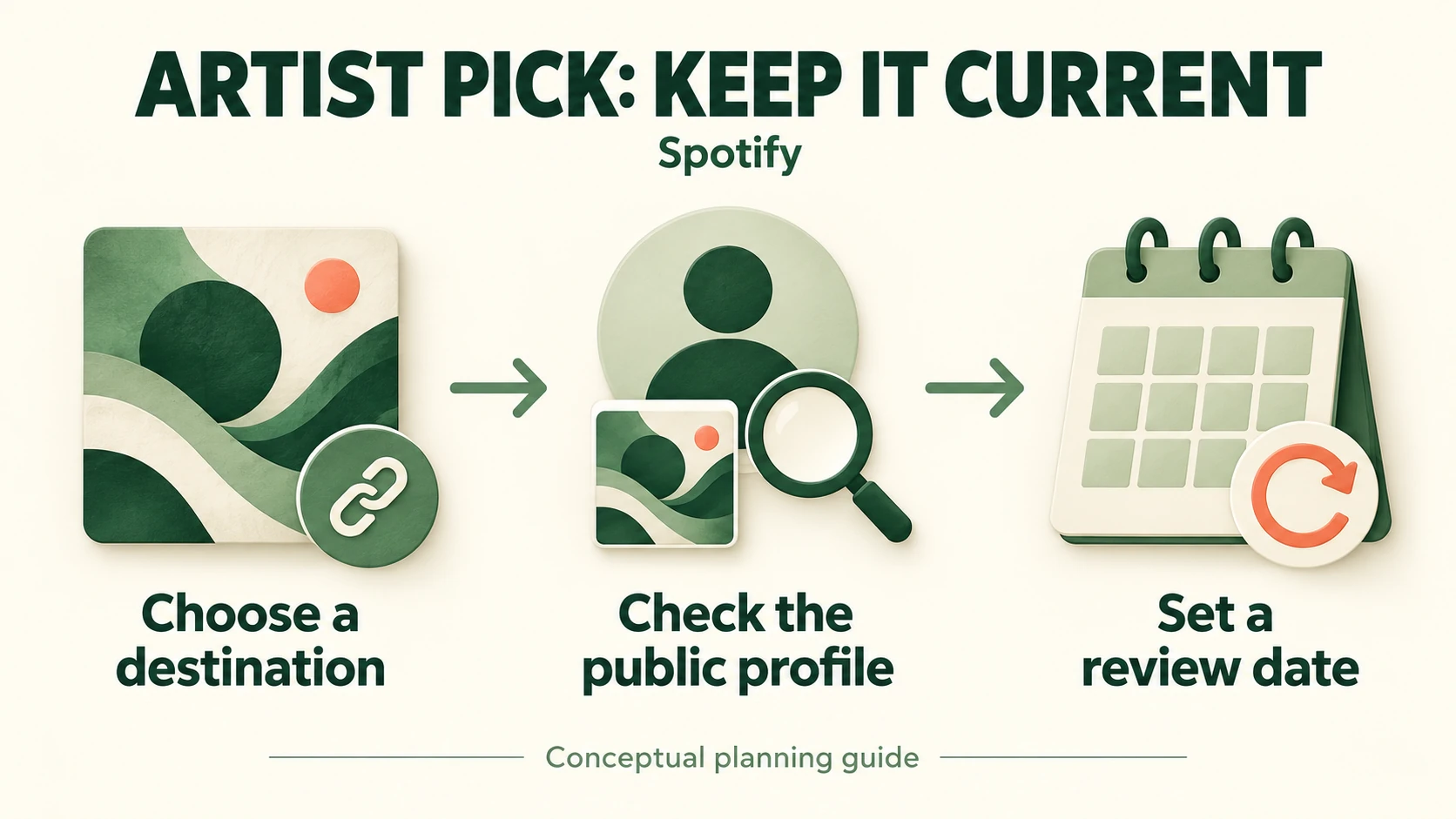
Your campaign may need a much earlier change. A message saying “See you Friday” can become outdated before the feature reaches its ordinary expiration. Put a review date in your release calendar when you set the Pick, rather than relying on its removal to remind you.
Record the destination, message, person responsible, and next review date together. Add a reason for the review: “after the launch show,” “when the next single arrives,” or “if the product sells out.” A reason makes the reminder useful even when your plans move.
If more than one person manages the profile, keep that note where the whole promotion team can see it. Include the exact replacement link before the deadline arrives. Recheck the link whenever you replace or correct a release. Someone covering for the usual manager should be able to make the intended change without guessing which release, playlist, or show the campaign is meant to send people to next.
A release-weekend handoff
Imagine an independent duo releasing an EP alongside a small launch show.
Before the show, the duo features the concert because their current posts invite nearby listeners to attend. Their manager records a simple note: keep the concert Pick through the event, then review the profile the following morning and switch the promotion to the EP.
If tickets sell out early, the manager checks what appears next. Spotify may display another upcoming concert, while the duo’s immediate priority has shifted to listening. They should choose the EP deliberately instead of assuming the automatic change matches the campaign.
After the show, the message can point to the recording: “Hear the EP we played at the launch.” The manager opens the public profile, checks the destination, and updates the calendar note. Assigning that small task prevents everyone from assuming someone else handled it.
The useful handoff is the combination of content and timing. The concert serves listeners who can attend; the EP serves people discovering the duo afterward. Neither choice needs to remain featured simply because it was appropriate earlier.
Check access and the public result
If you cannot edit the Pick, check your team role. Spotify’s access-level guidance says Admins and Editors can edit profiles; Readers cannot. Ask a Team Admin to review access if necessary.
After making a change, inspect the public artist profile on the device your audience commonly uses. Follow the Pick and read the message together. Check that the destination matches the promise and that important words remain readable. A saved setting alone does not tell you how the result looks to a listener.
Keep profile presentation and follower growth connected
A clear profile gives visitors something worth exploring before you ask them to follow. Spotify distinguishes followers from listeners: following an artist and streaming their music are separate actions.
If increasing your artist follower count is part of your promotion plan, Boost Social Media lets you buy Spotify artist followers for a selected public artist profile. That service concerns follower count; it does not set your Artist Pick or promise streams. Keep the featured destination useful for people who arrive.
At your next campaign change, reopen the profile and make the recommendation match what you are promoting now.