Select Page
How to Remove your Facebook Profile Picture without Deleting it?

How to Remove your Facebook Profile Picture without Deleting it?

How to remove a profile picture on Facebook without Deleting It? Imagine this: you have had the same profile picture for a while, but you want something new. However, there’s a small challenge: you don’t want to lose all those lovely comments and likes you have gathered over time. Well, here is the good news: you don’t have to.

In this digital tale, we will show you how to remove your Facebook profile picture without saying goodbye to it. Yes, you read it right – a change without erasing the past. So, get ready, and let’s explore Facebook together.

How to remove Facebook profile pictures without deleting?

Begin by logging into Facebook using your regular credentials, which typically include your email or phone number. After entering your password, click “Login” to access your account.

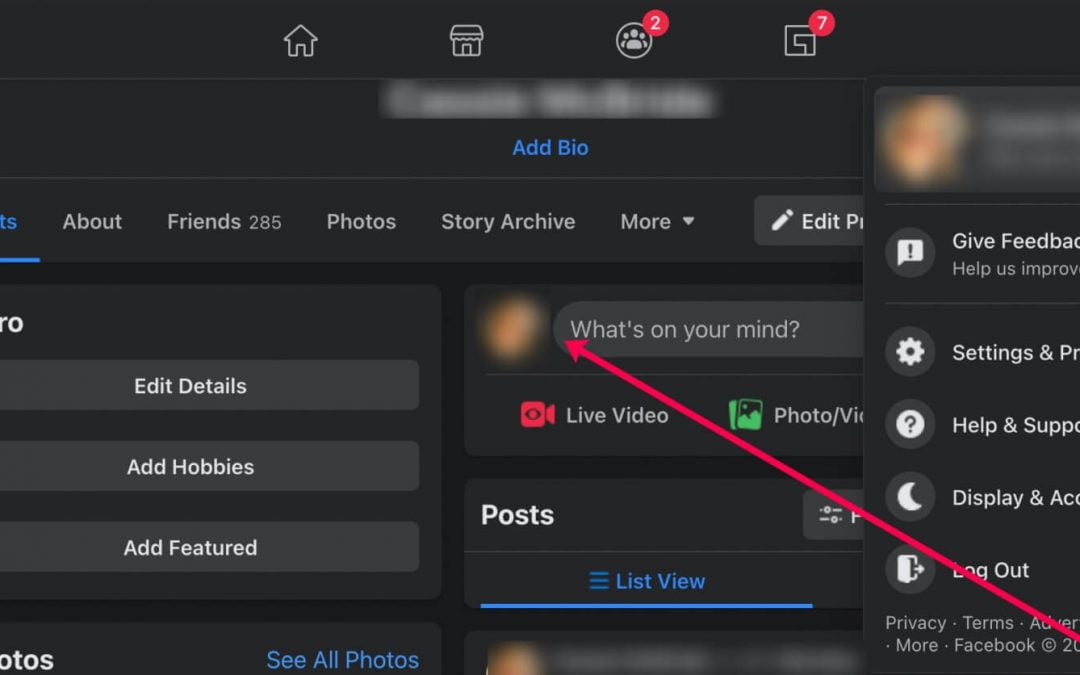
Once you’re on your Facebook timeline, navigate to your profile by clicking on your username or profile picture icon in the blue top bar, typically located on the right side of the screen for desktop users.

When you’re on your Facebook profile page, you can proceed with either of the two procedures mentioned below to remove your profile picture without deleting it. (By the way, I’ll also introduce an alternative option that works well in these cases.)

Option 1: How to remove a profile picture on Facebook without deleting it!

The first option involves replacing your current profile photo with another image from your profile photos album. This method allows you to easily remove the existing photo from your profile while selecting a new one. Here’s how to do it:

  1. Hover over your profile picture, and a text saying “Update Profile Picture” will appear. Click on it.
  2. A new window will appear, displaying your profile pictures album. Choose one of the other pictures that were once your profile picture by clicking on it.
  3. Once you’ve selected the image, a new window will open, allowing you to crop or edit it according to your preferences. After making the necessary adjustments, click the “Save” button located at the bottom right of the window.

Voila! With these steps, your Facebook profile page will reload, reflecting the change in the profile picture without deleting the original photo.

But what if you don’t want to use any of your existing pictures or prefer to have no profile picture at all? Let me introduce you to the best trick for such scenarios.

Option 2: Uploading a New Image!

This trick involves uploading a new image to serve as your profile picture without deleting the current one from your Facebook account. Follow these steps:

  1. While on your profile section, hover over your profile picture to reveal the “Update Profile Picture” text. Click on it.
  2. The “Update Profile Picture” window will open. Here, click on the text that says “+ Upload Photo” located at the top left.
  3. By clicking the above, a classic “File Upload” window will appear. Browse and select the photo you want as your new profile picture on Facebook. This way, you can avoid deleting the existing photo. Once you’ve chosen the image, click “Open.

By following these steps, you can successfully update your Facebook profile picture without deleting the previous one.

FAQs

Can I Change My Profile Picture Without Losing Comments and Likes?

Yes, you can remove your current profile picture without losing those precious comments and likes. Facebook allows you to maintain the interactions associated with your picture even when you decide to change it. We’ll guide you through the steps.

Will My Friends Be Notified When I Change My Profile Picture?

Your friends will typically receive notifications when you update your profile picture. It’s a way to keep your network in the loop about your latest updates. However, you can customize who sees these notifications, and we’ll show you how.

Can I Delete My Profile Picture Permanently?

You can also completely remove your profile picture. We’ll provide instructions on how to do so permanently.

What If I Want to Replace My Profile Picture with a New One?

Maybe you’re not looking to remove your profile picture but replace it with a new one. We’ll cover the steps for changing your profile picture while keeping your existing comments and likes intact.

Are There Any Restrictions on Profile Picture Changes?

While Facebook offers flexibility in managing your profile picture, some rules and limitations exist. We’ll explain these restrictions so you can navigate the process smoothly.

Conclusion

The process is straightforward if you’re considering giving your Facebook profile a makeover without losing the engagement attached to your current profile picture. Log into your Facebook account and navigate to your profile. Click on your profile picture to find options to update or add a new picture. You can upload a new photo or select another from your existing albums. After selecting, adjust the picture as needed and save the changes. This way, you can seamlessly switch your profile picture on Facebook while retaining the views, likes, and Facebook comments associated with your previous one.


Buy real facebook live stream views

How to Untag Someone on Facebook?

How to Untag Someone on Facebook?

Ever wondered how to untag someone on Facebook? In our digital age, where being online is as important as our real-world interactions, knowing how to manage tags on platforms like Facebook is essential. Imagine this: you are casually browsing your Facebook and suddenly you see a photo or post where you or someone else is tagged, but it doesn’t seem right. This is where knowing how to untag comes in handy.

It is important to keep your online image clean and respecting others’ privacy. Whether it’s a tag in a photo that doesn’t belong or a link to a post you don’t want to be part of, learning how to untag someone on the Facebook mobile app is a key skill in today’s online world. Let’s explore how to do this in a way that keeps your Facebook experience positive and respectful.

What is Facebook Post Tags?

Before diving into the methods of un-tagging on Facebook, let’s clarify the concept of Facebook tags. When someone tags you in their post, it signifies that they have mentioned you or included you in their content. Fortunately, Facebook provides the option to block someone from tagging you in an old Facebook post and also allows you to remove tags from posts where you have been mistakenly tagged. The following sections will guide you through the process of un-tagging on Facebook, providing you with complete control over your tagged posts.

How to Untag someone on the Facebook Mobile App?

To un-tag someone on Facebook, follow these steps:

  1. Go to facebook.com or open the Facebook mobile app.
  2. Locate the post or photo from which you want to un-tag someone.
  3. Click the “More” button and select “Edit Post” to proceed with un-tagging.
  4. If you have tagged someone within the text of a post, simply edit the post, highlight the person’s name, and delete it.
  5. In case you mentioned that you were with someone in your post, visit the “Edit Post” page and tap on the person’s name. This will give you the option to add or remove tags accordingly.
  6. Please note that you cannot remove a tag from a Facebook photo directly from your timeline. To remove a tag from a photo, click on the photo first. On the desktop, select “Edit” and on a mobile device, tap the tag button at the top of the screen. Then, click on the “x” next to the person’s name to un-tag them.

How to Un-tag someone from a Text Post?

If you want to un-tag someone from a text post they have made themselves, follow these methods:

  • Open the Facebook app or use a browser to access the website.
  • Locate the post in which the person has been tagged.
  • Click “More” and select “Edit Post” from the drop-down menu.
  • Highlight and remove the username from the post by editing it out.

If a person is initially tagged using the “Who are you with?” feature, follow these steps:

  • Click on the three dots in the post’s right corner.
  • Select “Edit Post” and then click on the person’s name.
  • Choose the person and add or remove other people as desired.

How to Un-tag from Multiple Photos?

How to Un-tag from Multiple Photos

If you need to remove a tag from multiple photos on Facebook simultaneously, here’s how to untag someone on Facebook mobile:

  1. Look for the “Activity Log” button in your Facebook feed and click on it.
  2. On the activity log bar, click on the “Photos” link.
  3. Check if any new photos have appeared and select them.
  4. To remove the tags, click on the “Remove Tags” option and confirm the action.

Un-tagging Someone from a Facebook Post Online

To un-tag someone from a Facebook post using the website, follow these steps:

  1. Log in to your Facebook account through the website.
  2. Locate the post from which you want to un-tag someone.
  3. Click on the option to edit the post.
  4. Remove the tag by selecting the corresponding option.

FAQs

Does removing a tag from Facebook notify anyone?

No, removing a tag from Facebook does not send notifications to anyone. While adding a tag may raise privacy concerns, removing a tag does not require any notifications as it does not affect the privacy of others.

What happens when you delete a Facebook tag?

When you remove a tag from a post or photo on Facebook, the tag will no longer be displayed. However, the post or photo itself will still be viewable to the audience with whom it was originally shared, such as friends or specific groups. The post or photo may appear in places like the news feed or search results.

How can I prevent others from tagging me on Facebook?

To control tagging on Facebook, you can adjust your account settings. Under the ‘Timeline and Tagging’ settings, you can choose who can tag you and also enable the option to review tags before they appear on your timeline, giving you full control over your tagging presence on the platform.

Is it possible to untag multiple people at once on Facebook?

Currently, Facebook doesn’t offer a direct way to untag multiple people at once. You need to untag each person individually from each post or photo they are tagged in.

Conclusion

Untagging on Facebook is a straightforward process if you’ve accidentally tagged the wrong person in a photo or post. It removes the tag from the post or photo, reducing the chances of it appearing on the untagged person’s timeline or affecting Facebook page likes. This feature helps manage online interactions, ensuring a comfortable and respectful Facebook experience for you and your friends.

Buy Facebook Comments


How to Report Someone on Facebook?

How to Report Someone on Facebook?

Facebook, the renowned boost social service and website founded by Mark Zuckerberg in February 2004, has become a platform where communication, community-based input, engagement, content sharing, and interaction are emphasized. Alongside other popular social media platforms like Twitter and LinkedIn, Facebook has garnered a vast user base globally.

What is Reporting on Facebook?

Reporting someone on Facebook is an essential activity, and it is crucial to ensure that your reasons for reporting are valid. When you encounter indicators of criminal behavior or suspect someone of acting suspiciously or unlawfully, Facebook highly encourages you to report such instances. Every post, photo, and video on Facebook includes a link to report the content, enabling users to notify the platform about any violent, immoral, or objectionable material.

How to Report Someone Through the Mobile App?

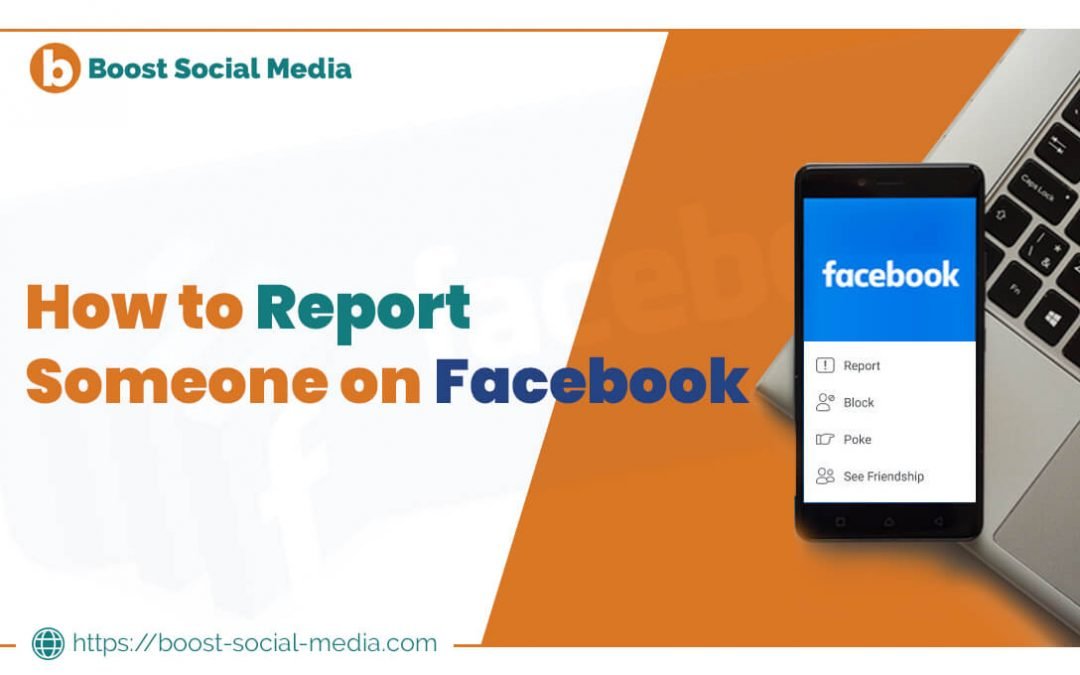
To begin reporting someone on Facebook, follow these steps using the Facebook mobile app:

  1. Open the Facebook app, represented by a white ‘f’ on a blue background. If you are already logged into your account, this will take you to your newsfeed.
  2. If you haven’t done so previously, enter your email address and password.
  3. Near the top of the user’s page, to the right of and below their name, you will find a three-dot menu icon. Tap on it to open a pop-up menu.
  4. In the pop-up menu, select “Give Feedback or Report This Profile” to access the reporting options.
  5. Choose the appropriate reason for filing a report from the provided menu. Select one of the following options:
    • Pretending to be someone you are not.
    • I want to help someone else with a fake account and a fake name.
  6. If necessary, provide additional details for follow-up. If you selected “Pretending to be someone,” tap “Me” in the “Who Are They Pretending to Be” section. For “I want to help,” tap a reason in the “Can You Offer Us Any Additional Details” box.
  7. Press the “Send” button at the bottom of the screen. It appears as a blue button.
  8. When prompted, tap “Did This” to ensure that your reports are sent.

Take Action Against Offenders: Report on Facebook with Ease! Safeguard your online community by reporting suspicious profiles. Learn the step-by-step process now!

How to Report Facebook Posts, Comments, or Photos?

To report a Facebook post, comment, or photo, follow these steps:

Locate the Content: Find the post, comment, or photo that you want to report on Facebook.

Access Reporting Options: Depending on the platform you’re using (desktop or mobile), you’ll typically find a three-dot menu icon (ellipsis) or a downward-facing arrow next to the content. Click or tap on it to reveal a dropdown menu.

Select “Report”: In the dropdown menu, look for an option labeled “Report” or “Report Post/Comment/Photo.” Click or tap on this option to proceed.

Choose a Reason: Facebook will then present you with a list of reasons for reporting the content. Select the most appropriate reason from the provided options. Common reasons include “It’s spam,” “It’s inappropriate,” “It’s violent or prohibited content,” etc.

Provide Additional Details (Optional): Depending on the reason you selected, Facebook may prompt you to provide additional details or context about why you’re reporting the content. You can choose to fill out this section or proceed without providing further information.

Submit the Report: Once you’ve selected a reason and provided any necessary details, click or tap on the “Submit” or “Report” button to submit your report to Facebook.

Confirmation: Facebook may display a confirmation message to let you know that your report has been received. In some cases, you may also receive follow-up notifications about the status of your report.

It’s important to note that Facebook takes reports seriously and reviews them to determine if the reported content violates its Community Standards. Depending on the severity of the violation, Facebook may take action such as removing the content, warning or suspending the account responsible for posting it, or even permanently disabling the account.

Reasons to Report Someone on Facebook

There are several reasons why you might want to report someone’s Facebook profile. It is essential to report responsibly and only for valid reasons. Here are a few common situations:

  1. Fake Profile: If you come across a profile that appears to be fake, you can report it to Facebook.
  2. Harassment or Cyberbullying: If you or someone you know is being harassed or cyberbullied on Facebook, it is important to report the perpetrator.
  3. Impersonation: Reporting an individual who is impersonating someone else on Facebook helps maintain the integrity of the platform.

Remember, it is crucial to avoid reporting a Facebook page out of personal vendetta, as Facebook may take action against your account in such cases.

Essential Requirements for Writing a Report

To report an account impersonating you, you need to establish your identity. Facebook, as the owner of Instagram, requires a clear photograph or scan of your photo ID, such as a passport, driver’s license, or any official identification that includes your name and photo. Additionally, you must link to the offending profile and provide evidence, such as photographs, comments, or other activities, to demonstrate that the account is impersonating you.

Best Practices to Report Facebook Account or Page

If you have a Facebook account and wish to report a profile or page, follow these steps:

  1. Visit the profile or page of the mimicking account.
  2. If you cannot find it, search for the name on the profile or page, or ask your friends to send you a link to it.
  3. Look for the link below the cover photo.
  4. Select “Find Support or Report Page” if you are reporting a page. Choose “Find Support or Report Profile” for reporting a profile.
  5. Follow the on-screen instructions to report the fraud appropriately.

FAQs

Is it possible to find out who reported you on Facebook?

No, on Facebook, it is not possible to determine who reported you. Facebook maintains the confidentiality of this information to prevent potential issues. Even if a post is reported, if it complies with Facebook’s guidelines, it will not be removed.

How many reports require to cancel a Facebook account?

Facebook’s decision to deactivate an account depends on the severity of the issue and the credibility of the reports, rather than a specified threshold for the number of reports. Even a single credible report can prompt Facebook to take action and deactivate an account within 24 hours.

What happens when someone reports to me on Facebook?

When someone reports you on Facebook, the content is reviewed. If any content is found to violate Facebook’s community rules, it is removed from the platform. However, your personal information, including your name, remains entirely confidential if Facebook needs to contact you regarding the report. You should expect to receive an email notification in your support mailbox regarding the status of the reported incident.

Conclusion

Facebook remains a popular social media platform with millions of users worldwide. Unfortunately, some individuals exploit its potential for nefarious purposes, violating community laws and regulations. In such cases, taking action against these accounts and reporting them to the Facebook community is crucial. This article has provided a comprehensive guide to reporting someone on Facebook, ensuring you understand the process and can contribute to maintaining a safe online environment.

How to Block a Page on Facebook?

How to Block a Page on Facebook?

How to Block a Page on Facebook: Social media has become an integral part of our lives, offering a platform for users to connect, share information, and create engaging web content. From blogs to microblogs, wikis to social networking sites, the digital landscape is filled with various avenues for interaction. Among them, Facebook stands out as one of the leading social networking services, providing a space to connect and share with family and friends over the Internet. Founded in 2004 by Mark Zuckerberg during his time at Harvard University, Facebook initially catered to college students but soon expanded its reach to a global audience.

Facebook offers a plethora of features, allowing users to share albums, interact through instant messaging, and engage with various forms of content. It serves as a hub for communication, entertainment, and information exchange. However, there may be instances where you wish to block a particular Facebook page for various reasons. Whether you’re receiving excessive notifications, seeking privacy, or aiming to curate your online experience, knowing can you block a page on Facebook can be invaluable.

Block a Facebook Page Using the Mobile App (Android & iPhone)

Blocking a Facebook page through the mobile app (Android & iPhone) is a straightforward process. If you’re looking to prevent a page from engaging with your posts or random comments, follow these steps:

  • Launch the Facebook app from your home screen and log in to your account if required to access your timeline.
  • Use the search bar to find the page you want to block. If you already follow the page, you can locate it on your timeline or among your followed pages.
  • Tap on the three dots or lines at the top right-hand corner of the screen to access the menu options, then select the “Report” button.
  • Choose the options that best align with your preferences. For a quicker option, you can select “I just don’t like it” and proceed.
  • Click the “Block” button next to the page’s name.

Take control of your Facebook experience with ease by blocking a page through the mobile app. Follow these simple steps to prevent unwanted engagement and keep your posts and comments free from interference. Tap into the power of the three dots, select ‘report,’ choose your preferences, and click ‘block’ to conceal all content from the page. Your timeline, your rules.

Block a Facebook Page on Your Desktop PC

For blocking a page on Facebook using your desktop browser, follow these simple steps:

  1. Open your preferred browser and navigate to facebook.com. If you’re already logged in, this will bring up your news feed.
  2. If not already logged in, enter your email address (or phone number) and password in the top-right corner of the page.
  3. Locate the page you wish to block by typing its name into the search bar. You can also find the page in your news feed and click on it.
  4. Once on the page, just below the cover photo, you’ll find a three-dot menu symbol. Click on it to reveal a drop-down menu.
  5. In the drop-down menu, select the “block page” option located at the bottom. Confirm your selection when prompted.
  6. The page will now be blocked, restricting interactions between you and the page.

Why Choose to Block a Facebook Page?

There are several reasons why you might choose to block a Facebook page. If you’re tired of seeing advertisements or updates from a company you previously worked for, blocking their profile can provide relief. Additionally, blocking Facebook apps can help break addictions to games or services that may be consuming excessive time or attention. Moreover, blocking a page ensures that you won’t see any posts from that page on your timeline and eliminates their presence from search results.

Take Control of Your Facebook Experience: Master the Art of Blocking Pages! Customize your online space, reduce clutter, and enhance privacy with ease. Learn how to block a page on Facebook today!

How can I View my Blocked Pages on Facebook?

To view your blocked pages on Facebook, follow these steps:

  • Select the downward-facing arrow icon in the top-right corner of the page.
  • From the drop-down menu, choose “Setting.”
  • Scroll down and select “Blocking” from the left-hand options.
  • Under “Block users,” you will find a list of pages you have blocked.

By staying vigilant and utilizing the reporting tools provided by Facebook, you can enhance your online security and minimize unwanted interactions with both blocked Facebook bots and potential pages.

FAQs

How do I block a page on Facebook?

For blocking a page on Facebook, visit the page you want to block. Click on the three dots (…) on the page cover, select “Find support or report page,” choose “Something Else,” and then click “Block Page.” Confirm your action, and the page will be blocked.

Can a blocked page still see my profile or content?

No, once you block a page on Facebook, it can’t view your profile or interact with your content. Blocking restricts any connection between you and the blocked page.

Is blocking a page the same as unfollowing it?

No, blocking and unfollowing are different actions. Blocking a page means it can’t interact with your profile, while unfollowing means you won’t see its posts in your News Feed.

Can a blocked page unblock itself?

No, a blocked page cannot unblock itself. Only the user who initiated the block can choose to unblock the page later if they wish.

Conclusion

Facebook has become an indispensable platform for social interaction and business promotion, connecting millions of people worldwide. However, there are times when you may want to tailor your Facebook experience by blocking certain pages.

Whether it’s to reduce clutter, enhance privacy, or manage notifications, knowing how to block a Facebook page performance empowers you to curate your online space according to your preferences. By following the outlined steps, you can effectively block and manage the pages you interact with, ensuring a more personalized and enjoyable Facebook experience.

How to Invite People to an Event on Facebook?

How to Invite People to an Event on Facebook?

Are you looking to host an event on Facebook and want to ensure maximum attendance? Inviting people to your Facebook event is a powerful way to generate interest, inform attendees about updates, dress codes, and timings, and boost overall engagement. In this article, we will guide you through the process of inviting people to an event on Facebook. Such as for weddings, product launches, festivals, or any other special occasion.

Creating a Facebook Event

Facebook, being a leading boost social media networking service, provides an excellent platform for promoting your business, products, and services. With its wide user base, creating a Facebook event allows you to expand your reach and increase visibility. Let’s explore how you can invite your friends and others to your Facebook event.

Logging in and Accessing Events

First, log in to your Facebook account using your username and password. If you don’t have an account yet, you’ll need to sign up and add friends before you can create an event.

Once you’re logged in, locate the “events” icon on the left side of your Facebook home page, under the column labeled “favorites.” If you don’t see the events link, simply type “events” into the search bar at the top of the screen and select the “events” option from the drop-down menu.

Creating the Event

Click on the “+ Create event” option in the upper right corner of your events page, located just to the left of the “Today” button and above the calendar.

A pop-up box will appear, prompting you to provide details for your event. At the very least, make sure to name your event, and it’s recommended to fill in the location, date, and time, and write a brief description.

Inviting Friends

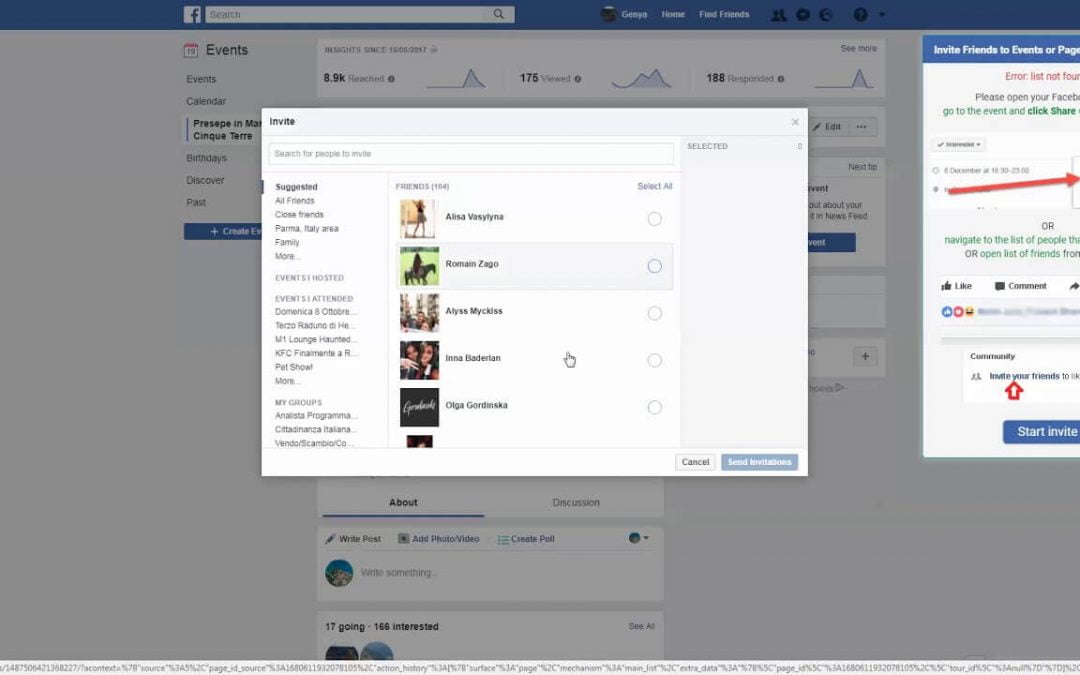
To invite your friends, select the “invite friends” option from the drop-down menu. This will take you to a page displaying a list of all your Facebook friends. Simply check the box next to each person’s name whom you wish to invite.

Typically, the people closest to you will appear at the top of the list, including family members, close friends, and significant others. If you can’t find someone you want to invite, scroll to the bottom or use the search bar at the top of the friend list.

Once you’ve finished selecting friends, click “save.” You will then return to the original pop-up window. Complete any remaining details about your event and click the blue “create” button to finalize the process.

Customizing Your Event

  1. After creating your event, you will be directed to the event’s dedicated page. Here, you can further customize your event and its details. Consider the following options:
  2. Include a photograph: Adding an appealing photo to your event page can attract more guests. Click the “add event photo” icon at the top of the screen and choose an image from your computer or Facebook album.
  3. Edit event details: If you need to modify the event’s name, description, time, or location, click the gray edit button represented by a pencil. You can also add additional hosts to the event.
  4. Invite more people: If you remember someone else you’d like to invite, simply click the gray “invite friends” button near the top of the screen, marked with an envelope. The list of your friends will appear again, and you can select additional names as before.

Explore advanced options on your event page by clicking the small gray gear button. From adding or removing hosts to sending personalized messages and creating repeating events, these features empower you to tailor events for multiple occurrences, fostering engagement and enhancing your Facebook audience’s experience.

FAQs

How can I manage the guest list for my Facebook event?

You can manage your guest list by accessing the event page. Here, you can see who has responded, send messages to guests, and even remove attendees if needed, ensuring efficient guest management.

Is there a limit to how many people I can invite to a Facebook event?

Facebook allows you to invite up to 500 people to a single event. For public events, there’s no limit on how many people can be invited, but managing a large number of guests can be challenging, so plan accordingly.

How to send reminders for a Facebook event?

To send reminders, go to your event page and post updates or messages. These posts act as reminders and will appear in the attendees’ notifications. Regular updates keep your event top-of-mind for your guests.

How do I cancel or edit an event on Facebook?

To edit or cancel your Facebook event, go to the event page, click ‘Edit’ to modify details, or ‘Cancel Event’ to call it off. Remember to notify your guests about any changes or cancellations.

Conclusion

In the vast realm of Facebook’s diverse features, it plays a pivotal role in our social and business interactions. Inviting individuals to your Facebook event fosters connections and extends your reach to both friends and potential audiences. For those managing large invitations, utilizing scripts can efficiently save time.

For added ease, consider exploring encoding options. We trust this guide on inviting people to your Facebook event will prove valuable. Begin crafting your event today, and let’s make it a memorable success! Your thoughts and Facebook comments are always welcome.

How to Unmute Someone on Facebook?

How to Unmute Someone on Facebook?

In today’s digital world, we often use social media like Facebook to stay connected with friends, family, and coworkers. Sometimes, though, we may feel the need to take a break from someone’s posts to clear our feeds or maintain peace of mind. But what happens when we’re ready to welcome them back into our online world?

Unmuting someone on Facebook is quite easy. It’s like flipping a switch to start seeing their stories, updates, and posts again. Whether you want to reconnect with an old friend, keep up with a colleague, or stay in the loop with family news, unmuting is the way to go.

It is all about getting back to engaging with the people who matter to you and staying connected in the online community.

How do you Unmute Someone on Facebook Android and iOS? 

To unmute on Facebook and catch up with their updates, follow these concise steps:

Using the Mobile App

Open the Facebook App: Start by launching the Facebook app on your smartphone. Ensure you are logged into your account.

Facebook app on your smartphone

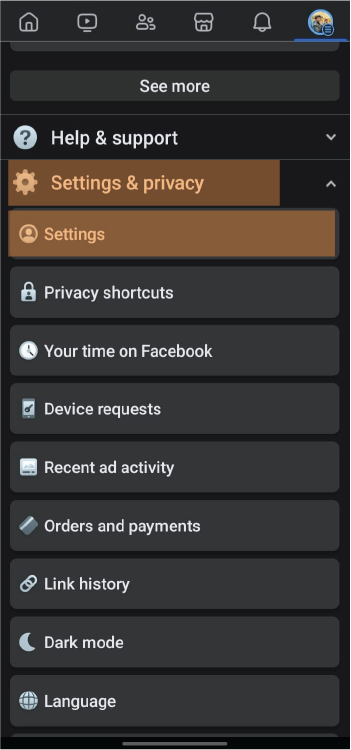
Navigate to Settings & Privacy: Scroll down in the menu until you find the “Settings & Privacy” option. Tap to expand it, then select “Settings”.

Settings & Privacy option select Settings

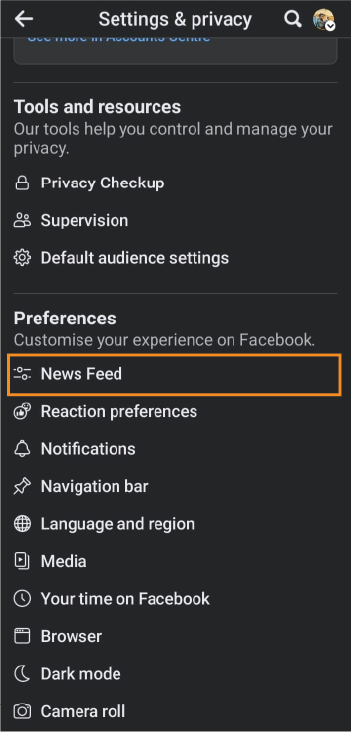
Find ‘Preferences’: Within the Settings menu, look for a section titled “Preferences” or sometimes directly “News Feed Preferences”. Tap on it.

News Feed Preferences

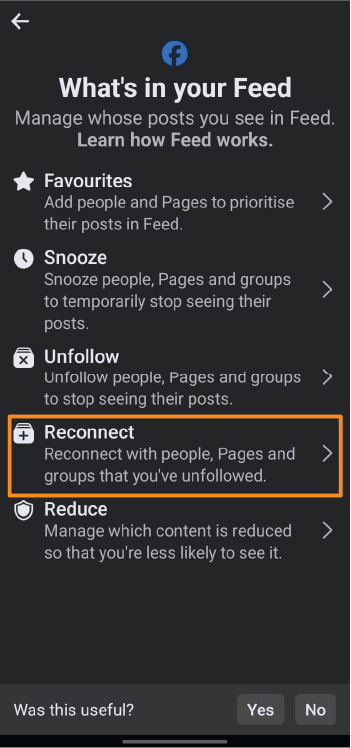
Select ‘Reconnect’: In the “Preferences” section, choose “Reconnect.” This section displays all the individuals and pages that you have previously muted.

Select Reconnect

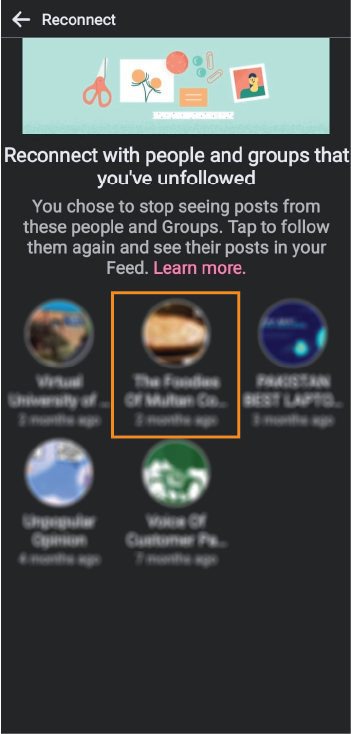
Unmute: Browse through the list until you find the person you want to unmute.

unmute person

Tap on their name, and then select the option to unmute posts on Facebook. This action will instantly allow their updates to start appearing in your News Feed again.

Using the PC

Visit Facebook: Open your preferred web browser and go to the Facebook website. Log in to your account if you are not already logged in.

Access Settings: Click on the downward arrow in the top right corner of your Facebook homepage. From the dropdown menu, select “Settings & Privacy”, then click on “Settings”.

Go to News Feed Preferences: On the left side of the screen, find and click on “News Feed Preferences”. This might be directly accessible or found under the “Preferences” section.

Choose to Unmute: In the News Feed Preferences, look for the “Mute” section. Here, you’ll see a list of all the people, pages, and groups you’ve muted. Find the person you wish to unmute and click on the button next to their name to unmute them.

Confirm Unmute: After clicking the unmute option, you might be asked to confirm your choice. Confirm it, and their posts will once again start appearing in your News Feed.

How to Mute Someone on Facebook?

Muting someone on Facebook is a useful feature when you want to stop seeing someone’s posts or stories on your News Feed without unfriending them. Here’s how to do it:

  • Navigate to the profile or page of the person you wish to mute.
  • Click on the “Following” or “Friends” button below their cover photo.
  • Select “Unfollow” from the dropdown menu. This action will mute their posts, meaning you will no longer see their updates on your News Feed, but you will remain friends.

How To Unmute Facebook Stories?

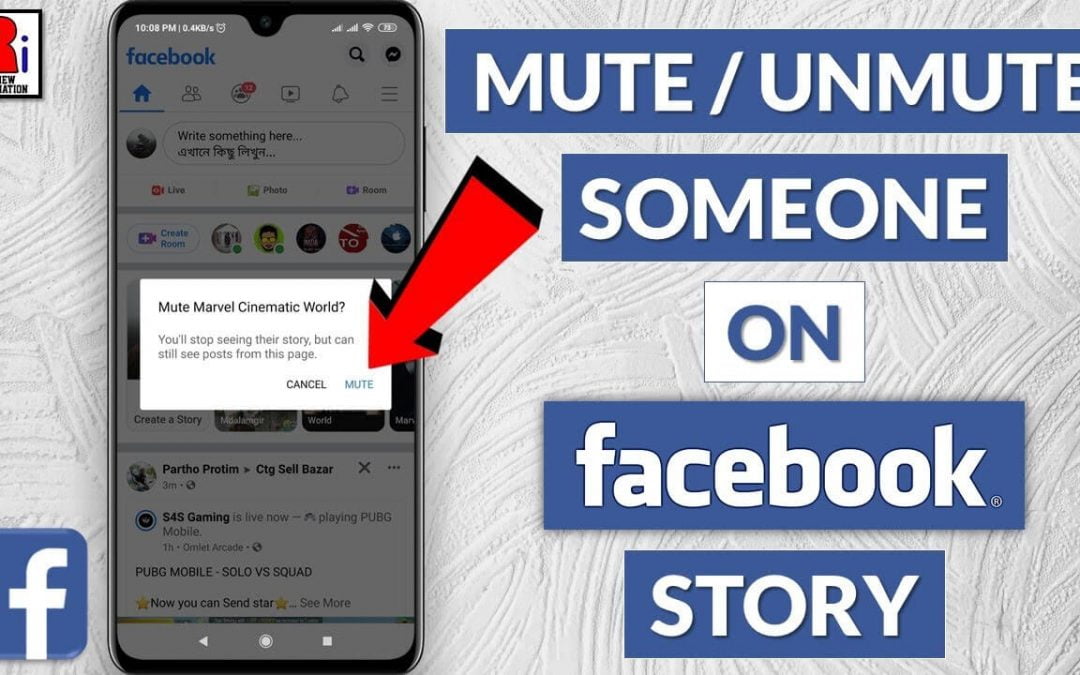
If you have muted someone’s stories and decide you want to start seeing them again, here’s how to unmute them:

  • Access the Stories Section:
  • Go to the Stories section at the top of your News Feed.
  • Scroll to the far right of the Stories section until you see the “Muted Stories” option (it may appear as a grayed-out profile with a slashed circle icon).
  • Tap on the “Muted Stories” option to see all the stories you’ve muted.
  • Find the person whose story you want to unmute and tap on their profile picture.
  • “Unmute [Name]’s Story” from the options.

Please note that the specific steps may vary slightly depending on whether you are using Facebook on a desktop browser or through the mobile app. The above guidelines provide a general approach to managing your interactions with other users on Facebook, ensuring you have control over what content appears on your News Feed and Stories section.

FAQs

How do I find my list of muted friends and pages on Facebook?

To find your list of muted friends and pages, visit your “Settings & Privacy,” then “Settings,” and look under the “News Feed Preferences” or “Privacy” section for a list of muted accounts.

Can I unmute Facebook notifications for specific individuals?

Yes, to unmute Facebook friend notifications for specific individuals, visit their profile, click on the “Friends” button, and adjust your notifications settings by choosing “Standard” or “All” to receive notifications again.

Will the person know I unmuted them?

No, Facebook does not notify the person when you unmute them. It’s a discreet action, and they won’t be aware of it.

Can I mute and unmute someone multiple times?

Yes, you can mute and unmute someone on Facebook as many times as you like. It’s a flexible feature that allows you to control your News Feed according to your preferences.

Conclusion

Unmuting someone on Facebook lets you start seeing their posts and stories again after you’ve stopped them from appearing in your News Feed. This is a handy feature for when you’re ready to catch up with friends or pages you previously muted but want to hear from again. Unmuting is easy and doesn’t let the other person know you’ve made the change. It’s a great way to keep your News Feed filled with updates that matter to you.

Buy Facebook Post Likes

We are gathering the necessary information...