
YouTube end screens put clickable recommendations and a subscription option into a video’s closing seconds.
Add them in YouTube Studio, then give viewers a specific reason to use them. The useful question is what someone should watch after finishing the lesson you just delivered.
For a business channel, that choice can connect separate tutorials into a useful collection. A viewer who has learned to mix pizza dough might want help shaping it next. Your ending can put that lesson within reach while explaining what subscribers can expect from the channel.
Check the rules before editing
According to YouTube’s end screen guidance, videos must last at least 25 seconds. End screens occupy the final 5–20 seconds. Standard 16:9 videos allow up to four elements; other shapes may allow fewer. External website links require YouTube Partner Program membership.
A graphic exported with your video cannot create those clickable elements. Think of the ending as two layers: the footage you edit and the interactive elements you add in Studio. You can prepare space for a recommendation before adding its link.
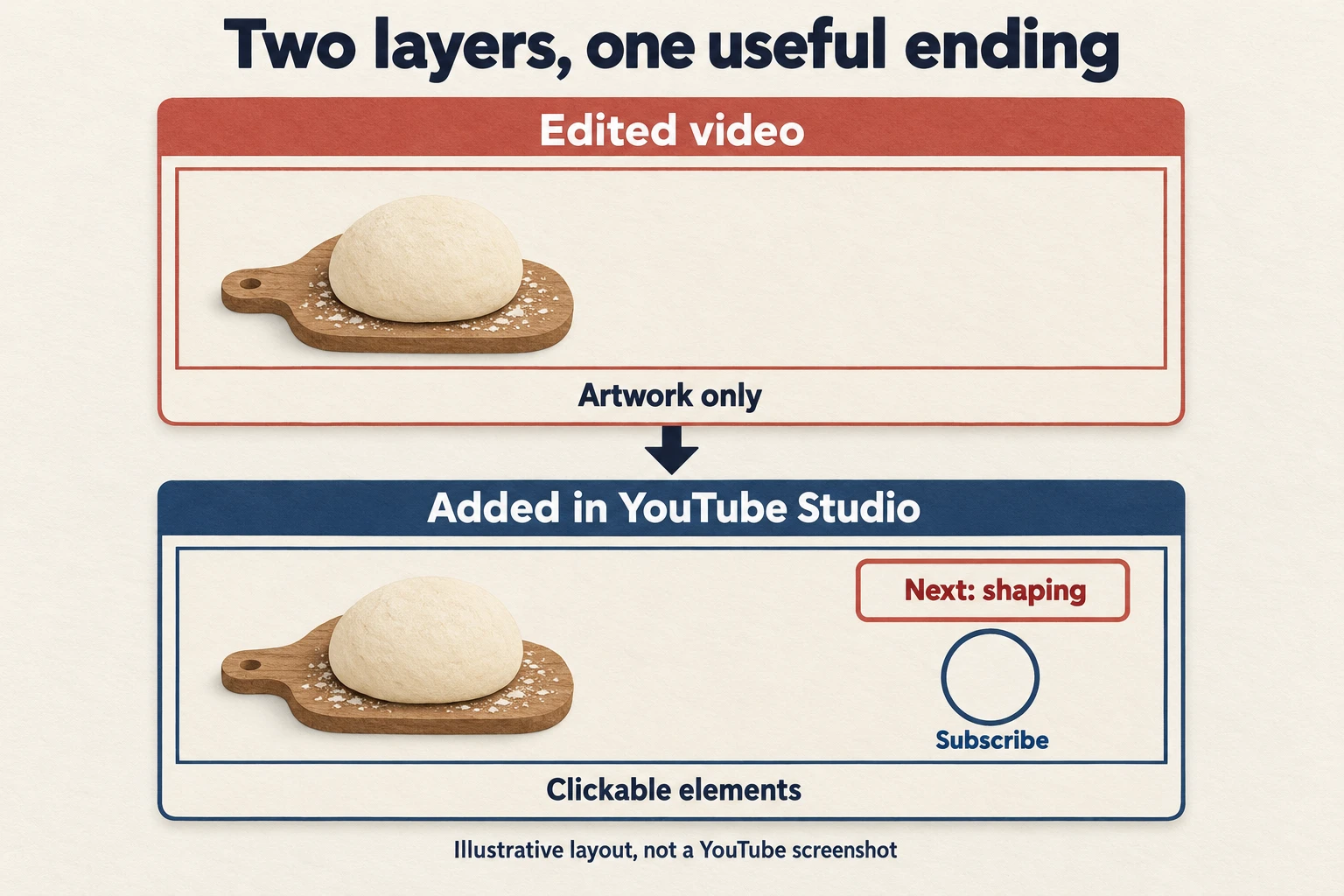
Add the elements in YouTube Studio
- Open Content, choose the video, then select Editor and End screen.
- Choose a template or add elements, such as a video and Subscribe.
- Set the destination, position and timing. Play the preview, then save.
Video options include your latest upload, YouTube’s choice for the viewer, or a specific video. For a lesson with a clear continuation, start by choosing that continuation yourself. Check that its title and opening deliver the answer your invitation promises.
Keep important hand movements and ingredient labels outside the areas where elements will appear. Watch the complete transition, including the sentence before the ending. If an overlay arrives while the viewer still needs to inspect the dough, move the demonstration earlier or adjust the placement.
After saving, revisit the ending and follow the recommendation yourself. Confirm that it opens the intended lesson before sharing the video.
Plan a 15-second ending for a pizza lesson
Imagine a bakery publishing a tutorial about mixing pizza dough. The finished lesson explains the mixing process, and the channel already has a separate shaping demonstration. The following plan is a hypothetical editing example, with timings measured from the start of its final 15 seconds.
- 0–4 seconds: show the finished dough and complete the lesson’s last instruction. Keep the preparation surface visible so viewers can inspect the result.
- 4–10 seconds: introduce the shaping lesson while its video element appears beside the presenter. Say, “When you’re ready to shape your pizza, watch this demonstration of stretching the dough.”
- 10–15 seconds: leave the recommendation visible and add the Subscribe element. A short invitation could be, “Subscribe for more home pizza lessons.”
The example uses one video and one subscription option because each has a distinct job. The video answers the next practical question; subscribing offers a way to follow the same topic. This is a layout to try, with enough room to see both choices.
Read the lines aloud against your footage before committing to those timings. If the presenter rushes the invitation, shorten the sentence or give it more time within the permitted ending.
Keep the final mixing instruction intact. Someone should receive the promised answer even if they never click.
The visual needs only enough direction to connect the spoken invitation to its destination. A simple label such as “Shape your pizza” is clearer than a second paragraph on screen. Leave room for the clickable element when framing the shot, and keep the presenter’s gesture away from essential details.
Make the recommendation worth following
Choose the next video by the viewer’s likely question. A kitchen tour might be your newest upload, but the shaping lesson continues the task started in the dough tutorial. Review the destination before linking it: can someone follow it without equipment or background knowledge you have not explained?
Then check the subscription promise against the channel itself. If you invite people to follow home pizza lessons, make those lessons easy to find. A channel full of unrelated uploads creates uncertainty about what another subscription will bring. Group related material and describe the subject plainly.
Before publishing, watch the ending on a smaller screen. Read every label, listen for rushed speech, and check whether the recommendation covers anything useful. Ask someone unfamiliar with the edit which video they expect to open. Their answer can expose an unclear invitation before you start collecting results.
Use the response to choose your next edit
In the video’s Analytics, open Engagement and find End screen element click rate. YouTube’s engagement documentation explains that this report shows how often viewers clicked each element. Review audience retention too, so you can see how the closing section held attention.
Suppose viewers remain through the ending but rarely choose the shaping lesson. Check whether the spoken invitation identifies the benefit and matches the destination’s title. If viewers leave before the invitation, inspect the preceding footage for a repeated summary or a pause with nothing useful happening.
These are reasons to investigate, not proof of a cause. Change one part of a later, comparable tutorial and record what changed. A click also does not tell you whether someone subscribed or returned. Keep those questions separate when assessing the channel.
If you decide to buy YouTube subscribers, Boost Social Media offers subscriber packages for a channel. That purchase addresses subscriber count. Plan the lessons and their endings separately, then assess clicks and returning viewers on their own terms. A useful collection gives people something to explore after discovering you; the package alone does not establish that response.
If an end screen does not appear
Made-for-kids videos cannot use end screens. Viewers can hide them, and they are unavailable in some contexts, including most mobile web browsers; iPad mobile web is an exception.
Keep the spoken recommendation understandable on its own. Before your next upload, choose the follow-up lesson, rehearse the invitation, and check the saved ending. Give interested viewers a clear route to another useful answer.