
To pin a comment on YouTube, sign in to the channel that uploaded the video, open its comments, and select the three dots beside the comment. Choose Pin, then confirm. You can highlight your own message or a viewer’s contribution. Your channel needs advanced features enabled.
A useful pin saves viewers a search through the thread. It can answer a recurring question, correct something in the video, or point people toward their next step. The choice matters as much as finding the button.
Pin a comment on desktop or mobile
Start on the video’s watch page. On a phone, open the video in the YouTube app and expand the comments. Then follow these steps:
- Find the published comment you want to highlight, or post your own.
- Open the three-dot menu beside that comment.
- Select Pin and confirm the choice when prompted.
- Check that the comment appears with the pinned label and your channel name.
YouTube’s comment instructions explain that selecting another comment replaces the existing pin. You have one pinned comment per video, so choose the message that deserves that position now. To remove it, open the same menu and select Unpin.
You can also pin through YouTube Studio on desktop or mobile. Open the comments for the individual video before looking for the action. According to YouTube’s Studio guidance, pinning is available in this single-video view, rather than the combined comments view for your channel.
What to check when Pin is missing
Check these conditions before repeatedly refreshing the page. Each points to a different reason the option may be unavailable.
- Confirm the active channel. If you manage several channels, switch to the one that owns this video. Posting a comment on someone else’s upload does not give you control over its pinned comment.
- Check advanced access. In desktop Studio, open Settings, Channel, then Feature eligibility. Look at Advanced features. Phone verification alone does not complete this level of access.
- Allow activation time. If you just enabled advanced features, YouTube says pinning can take up to 24 hours to appear.
- Check the comment’s status and view. In Studio, use published comments for one video. For a comment held for review, decide whether to approve it before trying to pin it.
YouTube’s advanced-feature access guide explains the available routes, which include sufficient channel history or identity verification where offered. Follow the route shown for your channel.
If the entire comments section is unavailable, investigate that first. For example, YouTube does not allow comments on private videos or videos designated made for kids. A missing comments section and a missing Pin action are separate problems.
For a quick diagnosis, write down which condition failed: channel ownership, advanced access, comment availability, or the Studio view. Changing unrelated settings makes the problem harder to isolate. Once you have addressed that condition, return to the same video and try the comment menu again.
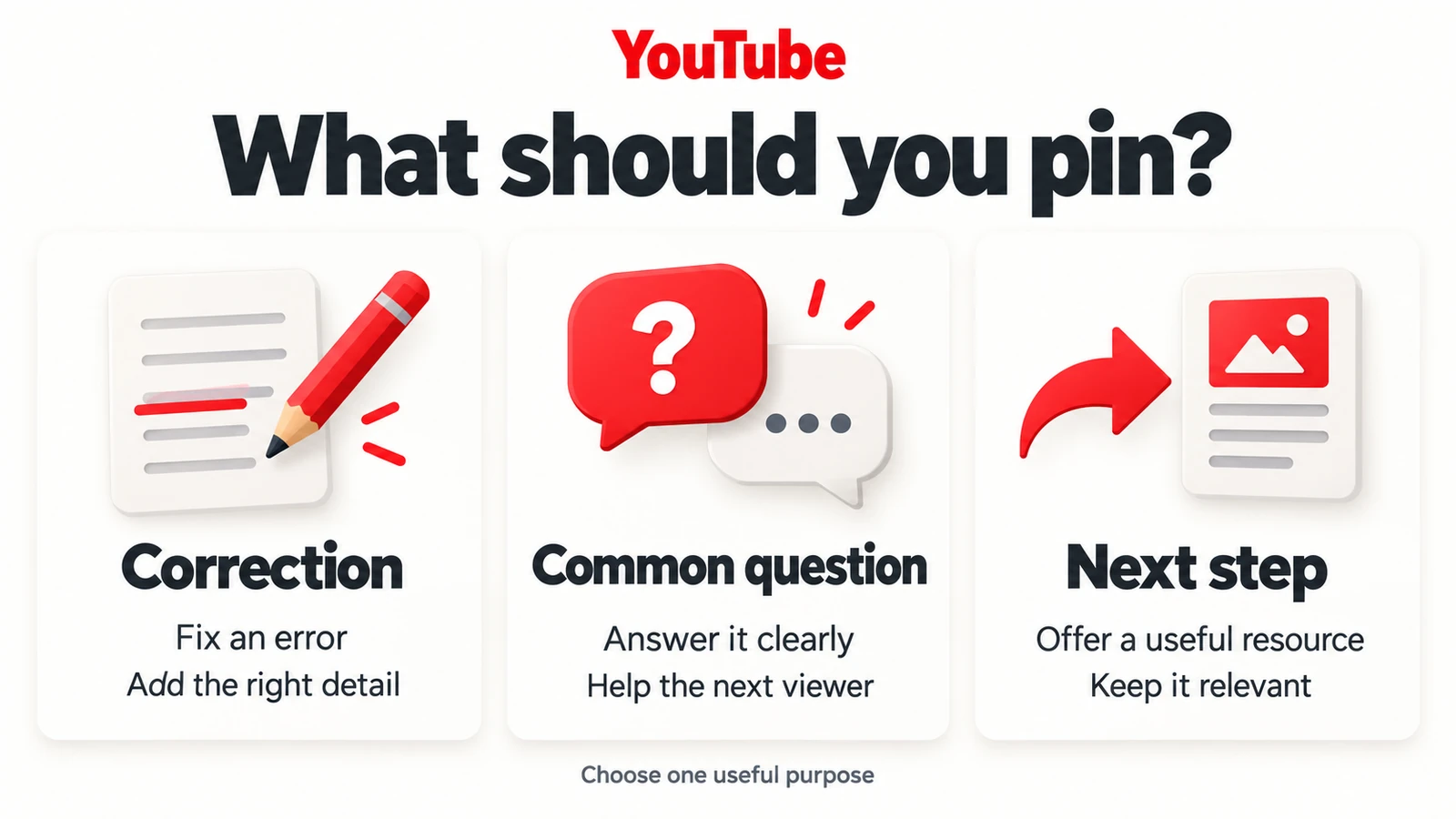
Choose a comment that earns the top position
Decide what a viewer needs after watching. YouTube’s community guidance suggests using pins for clarifications, specific questions, references to video moments, or thanks. Give each pin one clear purpose.
Correct something viewers might follow
Imagine a fictional watercolor channel whose tutorial names the wrong brush size. A useful pin might read: “Correction: the round brush in the materials list is size 8. The description now has the correct size.” This gives the correction first and identifies what changed.
A correction should usually take priority over a promotional message while the error still affects viewers. Update the relevant description and any linked materials list too, so people who look there receive the same information.
Answer a question that keeps appearing
Suppose several viewers ask whether the practice sheet is available. The creator could post: “The practice sheet is linked in the description under Materials. Print it at actual size so the boxes match the demonstration.” This hypothetical note answers a specific obstacle without making viewers read a long exchange.
If a viewer has already written a helpful explanation, consider highlighting that contribution. Read the full comment and check its accuracy before giving it the most prominent position.
Offer a useful next step
Once the urgent questions are covered, try a focused invitation: “Which part needs a closer demonstration: mixing the wash or painting the edges?” That is easier to answer than a broad request for opinions. Use the responses to decide what to explain next, and reply when someone describes a specific difficulty.
Check how the pin works for viewers
Mobile viewers need to expand comments to see the pinned message; YouTube does not guarantee it will appear in the collapsed preview. Keep essential instructions in the video or description as well.
Be careful with links under Shorts. YouTube’s link guidance says URLs in Shorts comments are not clickable. Pinning a URL does not change that. For a Short, direct viewers to an appropriate channel profile link or use its related-video feature for a follow-up video.
Long-form video comments can contain clickable URLs, with advanced features required for external links. Describe the destination before sharing it. “Download the practice sheet” tells viewers what they will find; an unexplained address leaves them guessing. Open the destination yourself and check that it works for someone who is not signed in to your account.
Keep the conversation useful after publishing
Revisit the pin as questions arrive. Replace an outdated announcement, correct an unclear instruction, and answer useful replies. A comment chosen on launch day may no longer be the one new viewers need.
If you are also planning additional comment activity around a video launch, you can buy YouTube comments through Boost Social Media. The service provides random English comments rather than custom text. Write your own specific correction, resource note, or question when you need control over the message you pin.
After making a change, reopen the public video and read the pinned comment on your phone. Check any destination you recommend and confirm that the message still makes sense without the rest of the thread.