
Facebook Pinned Posts: How to Pin, Reorder, and Refresh
A Facebook pinned post gives Page visitors a convenient place to find information you want them to notice. On a Facebook Page, pinned posts sit in the Featured section. You can also feature upcoming events and recent videos, then arrange those items to suit what matters now.
The useful question is what someone needs when they arrive. A popular photograph may attract attention, but a clear explanation of how to book, order, or visit can answer the question that brought them there. This guide covers Facebook Pages, using the desktop controls.
Pin a post to your Page
You need Facebook access to the Page. On a computer, follow these steps:
- Open your profile photo menu, select See all profiles, and switch into the Page.
- Open the Page and locate the post you want to feature.
- Open the post’s Options menu and select Pin post.
There is another route through Manage in Featured. Use Add if items are already pinned, then select Pin beside the relevant post, upcoming event, or recent video. These controls are documented in Meta’s Page pinning instructions.
Reorder or remove a featured item
New pins go to the front. To change that order, open Manage, then an item’s Options. Choose Move to front, or use Move followed by Move left or Move right. Finish with Done.
To remove a pin, choose Unpin from the item’s Options and click Done. Pins remain until removed, so plan to revisit them. Adding a new item is a reason to check the whole section, especially if an older announcement is still featured.
Match your featured posts to what visitors need
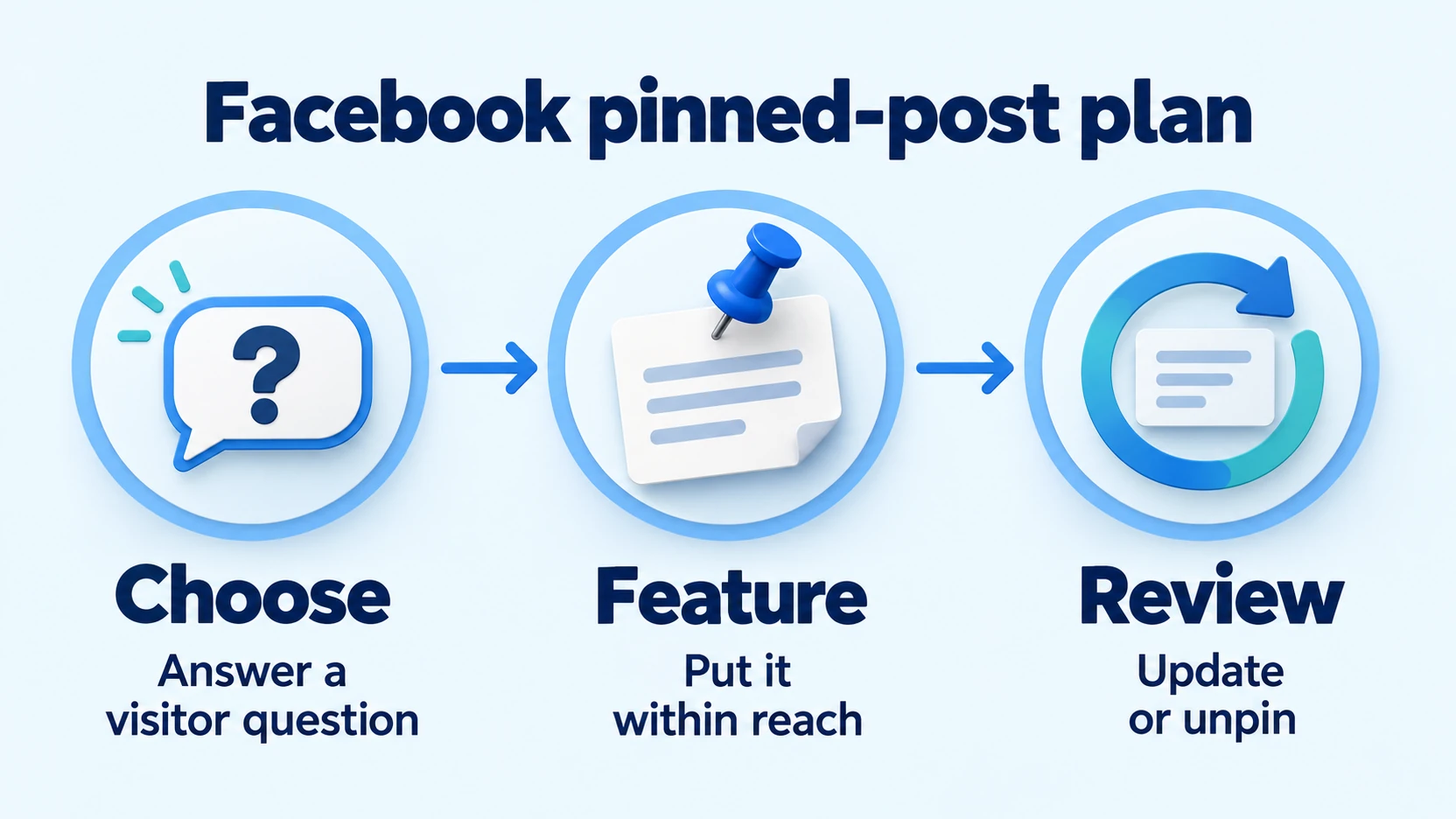
Start with the questions people repeatedly send you. Someone considering a service may need to know whether you handle their kind of job. Someone ready to visit may need an address or an appointment link. Write down that question before choosing the post.
Read each candidate without relying on earlier posts. Does it name the service or product clearly? Can someone understand the photo without knowing your team? Is there a specific next step? A caption that says “It’s finally here” needs more context before it becomes a useful introduction.
Check the destination as carefully as the post. If you ask readers to book, open the booking link and confirm that the relevant option is easy to find. If you invite messages, explain what information to include so your team can give a useful reply.
Reaction counts can help you identify content worth examining. They do not tell you whether a post answers today’s visitor question. An older competition may have plenty of likes while offering little help to someone trying to arrange a repair.
A worked example: booking details or a temporary notice?
Consider a hypothetical furniture repair studio. Its Page has a photo post explaining how to request an estimate, a recent announcement about a temporary entrance, and an older workshop recap. Each serves a different purpose.
The estimate post would usually be a useful starting point. It could explain which furniture the studio accepts, ask customers to send clear photos of the damage, and link to the inquiry form. Its photograph should help people recognize the work being discussed.
During building repairs, however, the entrance notice deserves the first position. A visitor with an appointment needs that information before arriving. The studio can keep the estimate guide available alongside it, then review the order when normal access returns. Include a date in temporary notices so a visitor can tell whether the information still applies before traveling.
- Estimate guide: answers “Can you assess my furniture?” The next step is sending photos. Review it when accepted work or inquiry instructions change.
- Entrance notice: answers “Where do I go today?” The next step is using the temporary entrance. Unpin it when that instruction expires.
- Workshop recap: shows a past activity. Keep it available for interested readers, but do not prioritize it over current visiting information.
This is an editorial planning example, not a reported campaign. The point is to give every featured item a job and a reason to be reviewed. That makes the next update easier for whoever manages the Page.
If the pin option is missing
First confirm that you switched into the correct Page. Then check your Page access with the person who manages it. Meta’s instructions apply to people with Facebook access; being able to help with a business account does not establish that you have this access.
Try the Featured section route if the post menu is unclear. Check which Facebook surface you are viewing before following another tutorial: Pages, groups, and personal profiles have different controls. These Page instructions should not be treated as a universal profile method.
Prepare the photo post before promoting it
For a featured photo, improve the explanation before deciding how to support it. Put the main subject in view, make any essential image text readable on a phone, and keep the caption focused on the question the post answers.
If you choose to buy Facebook photo likes, our service applies likes to the public post links you provide, without requiring your password. It can add visible reactions to the selected photo post. Use the post’s own link, rather than the address of your Page.
Pinning controls placement on your Page; likes change the post’s reaction total. Neither should be treated as a promise of wider Feed exposure. Look at inquiries and the questions people ask alongside reactions when deciding whether the post is doing its job.
Give each pin a review date
Keep a short note with the post link, its purpose, the person responsible, and the event that should trigger an update. That might be a booking change, an offer ending, or a return to normal opening arrangements.
At review time, open the Page on a phone, read Featured in its current order, and follow every destination link. Remove outdated instructions and move the most useful current item forward. Visitors should be able to act on what they find.